Licence activation
The licence decides what an instance may hold (tenants, accounts, devices) and which features it offers. It is managed in Settings › Platform › Licence (permission Licence › View to see it, Manage to change it). Licences themselves are bought and assigned on the Auditix marketplace.
| Tier | For | Main limits and features |
|---|---|---|
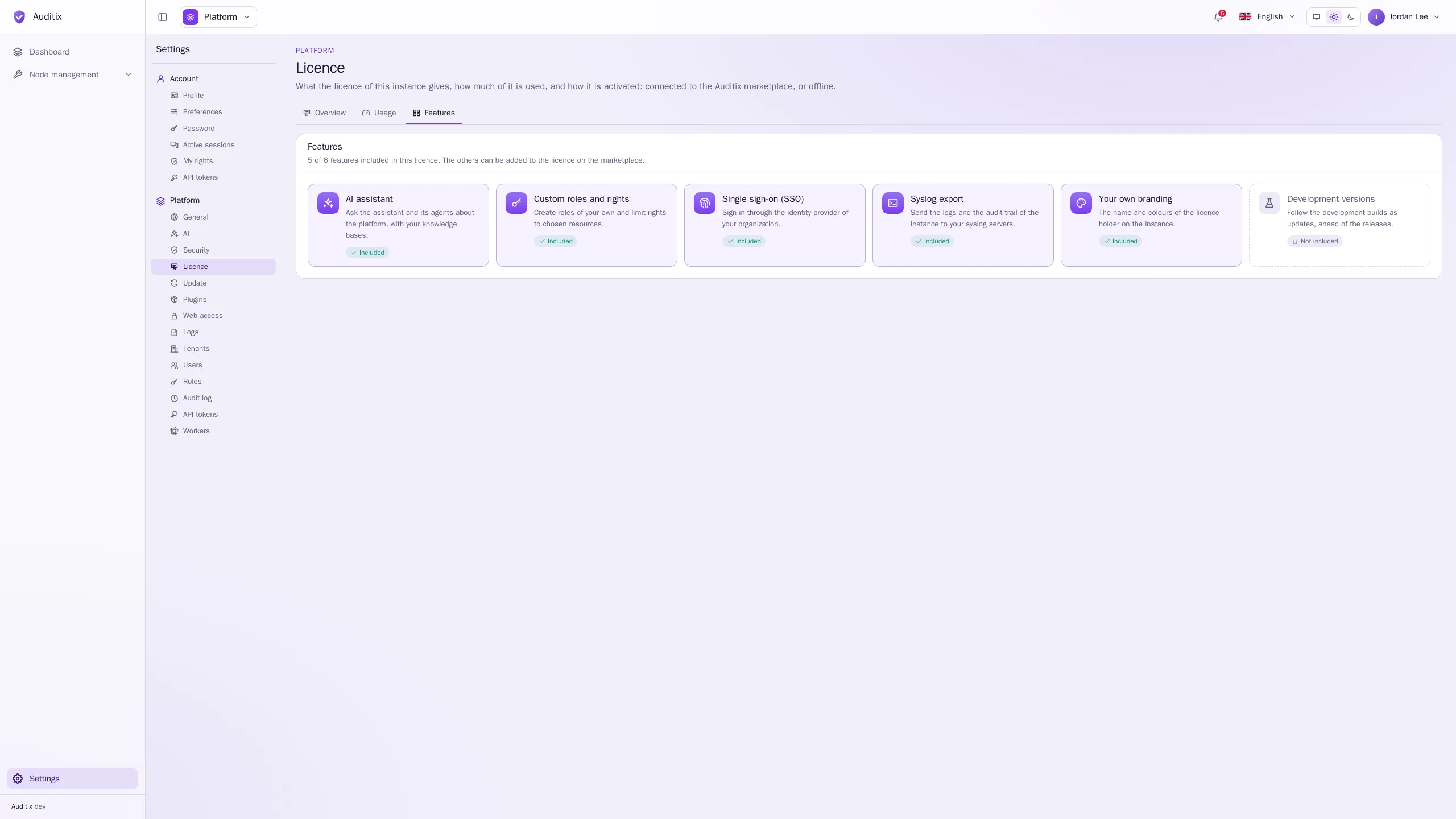
| Community | Free, the default without a licence | A single tenant, 100 devices, unlimited accounts, the AI assistant |
| Enterprise | One organization | A single tenant, custom roles and rights, single sign-on, syslog export |
| Auditor | Auditors working for several customers | One tenant per customer |
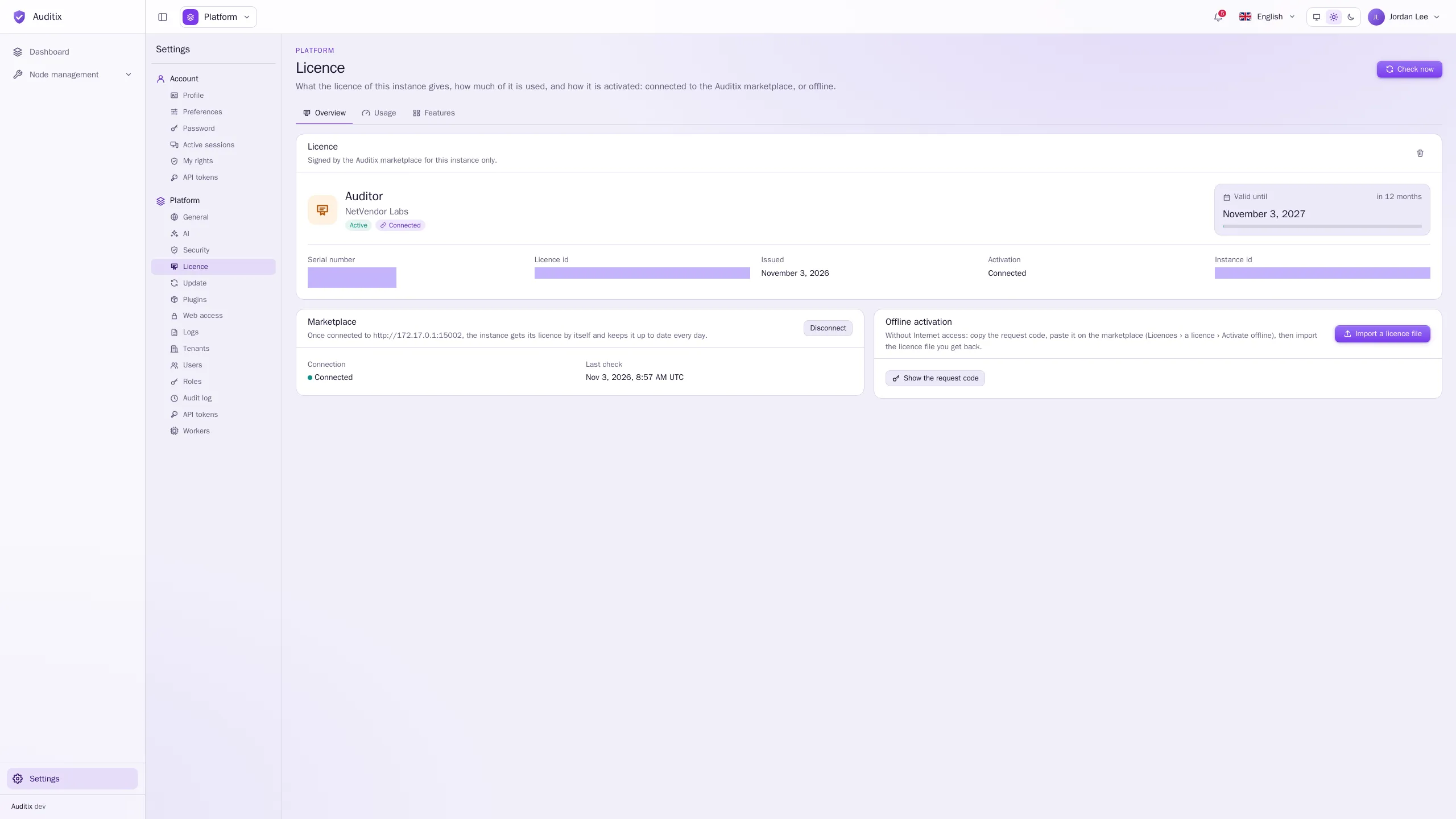
The exact limits and features always come from the licence file itself. The Usage tab compares what the instance holds with its limits; the Features tab lists the features the licence includes.
Activate a licence
Section titled “Activate a licence”There are two ways. Both produce a licence signed by the marketplace for this instance only: a licence file does not work on another instance.
The instance talks to the marketplace, gets its licence by itself and keeps it up to date every day (renewals, changes, revocation).
-
Make sure the marketplace is allowed: Settings › Platform › General › Connections › Check the licence on the marketplace must be on.
-
In Settings › Platform › Licence, click Connect in the Marketplace card. A window Connect to the marketplace shows a short code.
-
Click Open the marketplace, sign in, enter the code and choose the licence to give this instance (see Connecting an instance).
-
Back in Auditix, the window says Waiting for the approval…, then Connected to the marketplace: the licence is in force.
Check now fetches the licence again at once; you are notified of the result. Disconnect stops the daily check: the licence in place stays valid until it ends.
For instances without Internet access.
-
In Settings › Platform › Licence, under Offline activation, click Show the request code, then Copy. The request code (it starts with
AXR1.) is signed by this instance. -
On a computer with Internet access, open the marketplace: Licences › a licence › Activate offline, and paste the request code (see Activating an instance).
-
Copy the licence file the marketplace gives back (text starting with
AXL1.). -
Back in Auditix, click Import a licence file, paste it in Licence file and click Import.
Repeat when the licence is renewed. The same can be done from the server:
docker compose exec backend bin/console auditix:license request # prints the request codedocker compose exec -T backend bin/console auditix:license import - < licence.txtdocker compose exec backend bin/console auditix:license statusThe Overview tab then shows the tier, the holder, Valid until, the Serial number (with a
copy button: quote it when you contact the Auditix team, in the form AX-XXXX-XXXX-XXXX), the
Licence id, the Activation mode and the Instance id.
Expiry and grace period
Section titled “Expiry and grace period”- Platform administrators are warned 30, 7 and 1 days before the end (connected instances).
- After the end, a grace period of 14 days starts: everything keeps working, with a warning.
- Then the instance goes back to Community. Nothing is ever deleted: only creations beyond the Community limits are refused, and what the licence no longer includes becomes read-only.
If the marketplace cannot be reached, the licence in place stays valid until it ends.
Beyond a limit
Section titled “Beyond a limit”- Tenants: when the licence allows fewer tenants than the instance holds, choose those that stay active in Settings › Platform › Licence › Active tenants. The others are frozen: kept as they are, but nobody can enter them until a licence allows them again. With a limit of one tenant, the instance runs a single tenant: no tenant switcher, no platform view.
- Custom roles without the feature: roles in place keep their rights, but roles cannot be created, changed or deleted, and only the built-in roles can be given.
- Syslog export without the feature: the syslog servers are kept, but nothing is sent to them.
Remove the licence
Section titled “Remove the licence”Remove the licence (the bin icon of the Licence card) takes the instance back to Community and disconnects it from the marketplace. Nothing is deleted.