Activating an instance
Use offline activation for a platform that cannot reach the marketplace (an isolated network). The platform and the marketplace exchange two pieces of text, which you carry by hand. For a platform with Internet access, prefer connecting it: it then renews its licence by itself.
Before you start
Section titled “Before you start”- A licence that is Active and not yet activated on all the platforms it covers (the Platforms count on its page, such as 0 of 1). Take a free Community licence if needed.
- Manage the licences for the holder of the licence (always the case for your own licences).
- Administrator access to the platform.
Activate offline
Section titled “Activate offline”- On the platform, open Settings › Platform › Licence. Under Offline activation, select
Show the request code, then Copy. The request code starts with
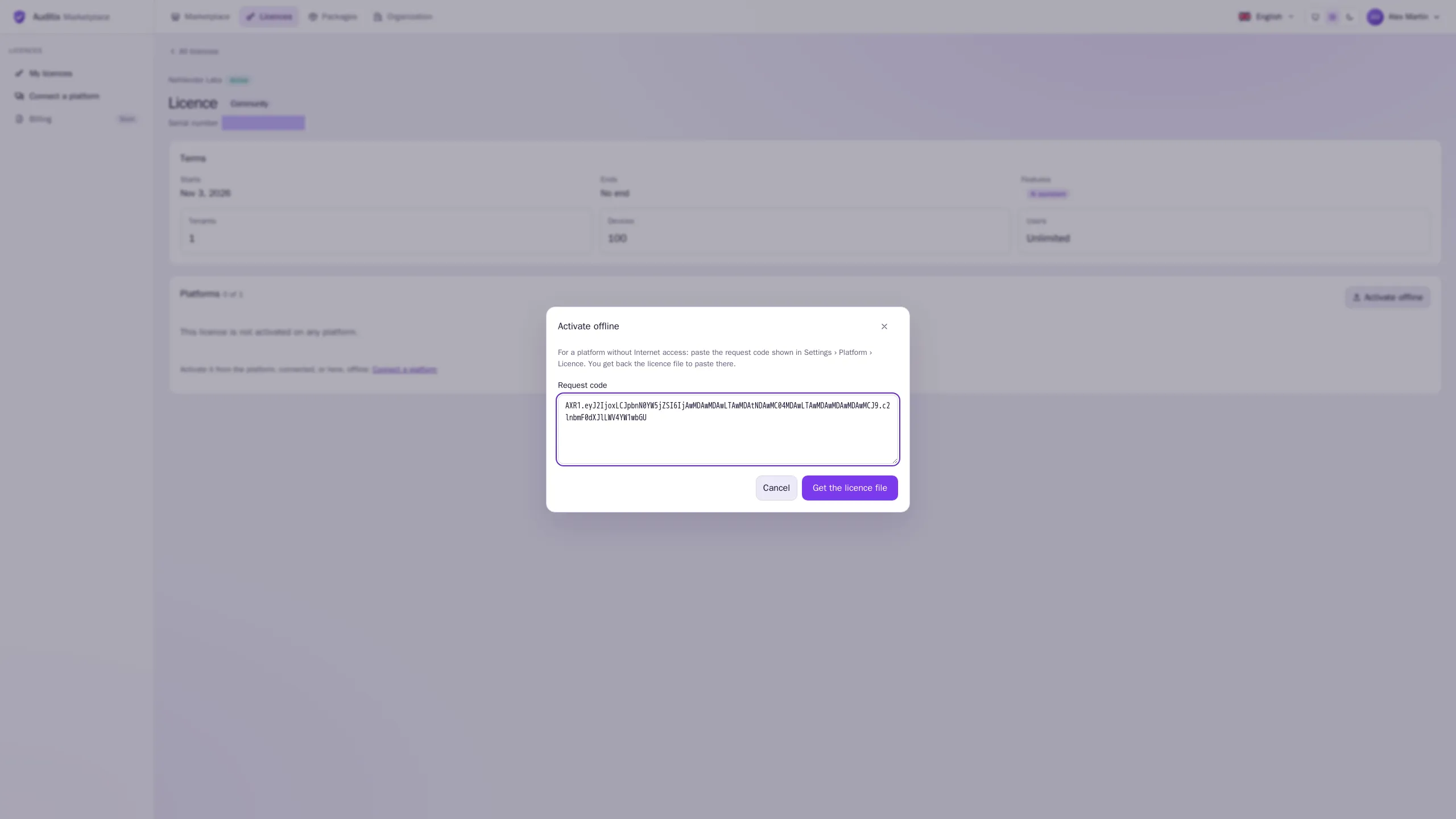
AXR1.and is signed by that platform. - On the marketplace, open Licences, then the licence, and select Activate offline in the Platforms card.
- Paste the code into Request code and select Get the licence file.
- The Licence file appears (it starts with
AXL1.). Copy it, or select Download. - Back on the platform, in Settings › Platform › Licence, select Import a licence file, paste the file into Licence file and select Import. The platform checks it offline; it is signed for that platform only.
The platform now appears in Platforms with the Offline mode. Example of what changes on the licence page:
| Before | After |
|---|---|
| Platforms 0 of 1 · This licence is not activated on any platform. | Platforms 1 of 1 · Lab platform (offline) · Offline · 0.13.0 · Activated today |
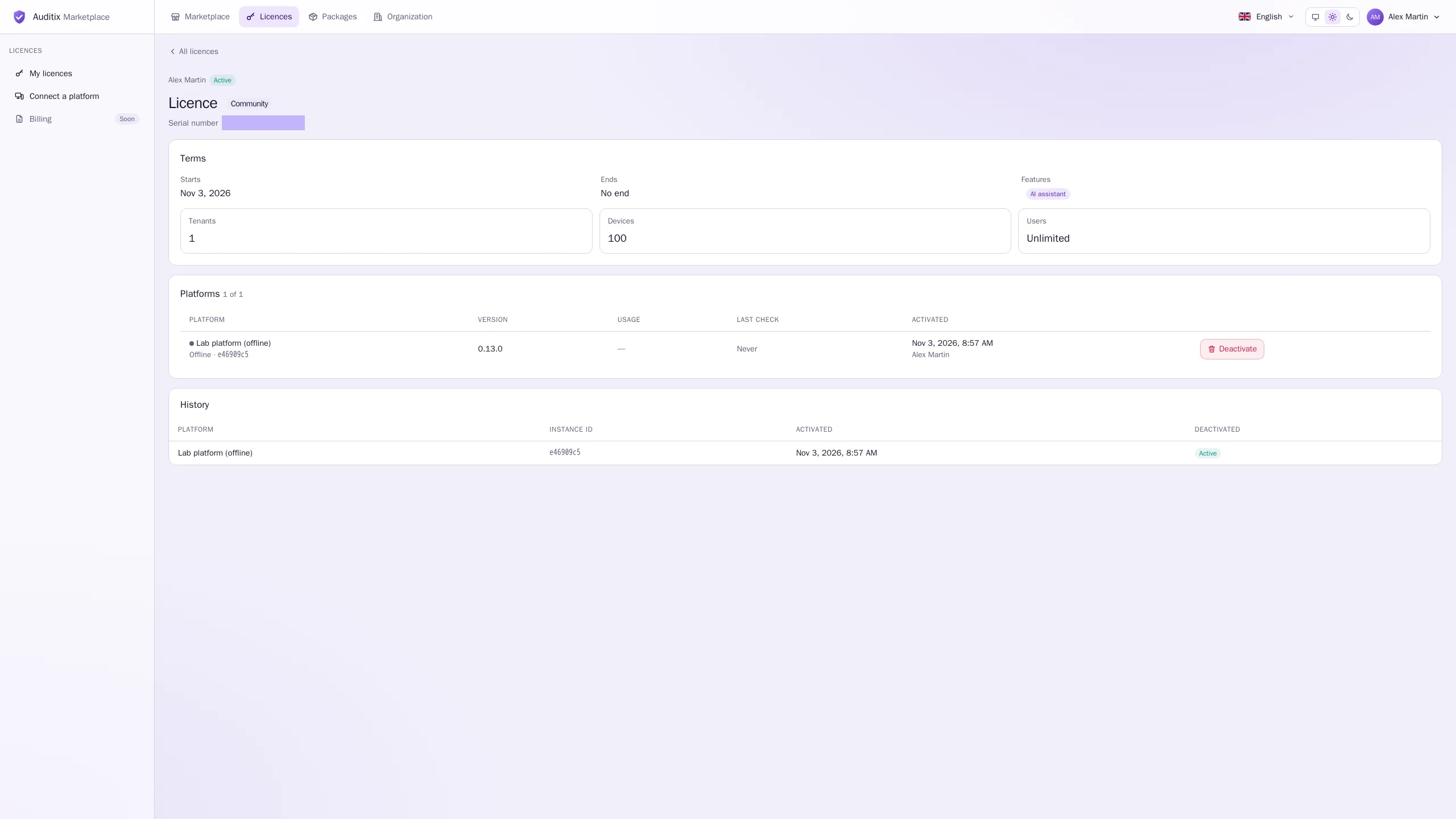
An offline platform never reports back: its Usage stays empty and its Last check reads Never.
Renewing an offline file
Section titled “Renewing an offline file”A licence file of an offline platform lasts until the end of the licence, and one year at most after it was issued. Before it ends, get a new file for the same platform: if the licence still has a free platform slot, select Activate offline again with the platform’s request code; otherwise Deactivate the platform first, then activate it again. Paste the new file on the platform.
Deactivating a platform
Section titled “Deactivating a platform”On the licence page, select Deactivate on the platform’s row. The slot is freed for another platform. An offline platform cannot be told: it keeps its file until the file ends, so deactivate only platforms you are retiring or reinstalling.
Errors
Section titled “Errors”| Message | What to do |
|---|---|
| Not a valid request code: copy it again from the platform. | Copy the whole code, from AXR1. to the end. |
| This licence is activated on all the platforms it covers: deactivate one first. | Free a slot, or use another licence. |
| This platform was reinstalled: deactivate the licence on it first. | The platform has the same id but a new identity key. Deactivate its old activation, then activate again. |
| This licence is revoked, ended or not started yet. | Use another licence, or contact the Auditix team. |