Public page
Every organization has a page at /organizations/<address>: a banner across the top, its
icon, its name and type, its description, its website and the Packages it
publishes that the visitor may see.
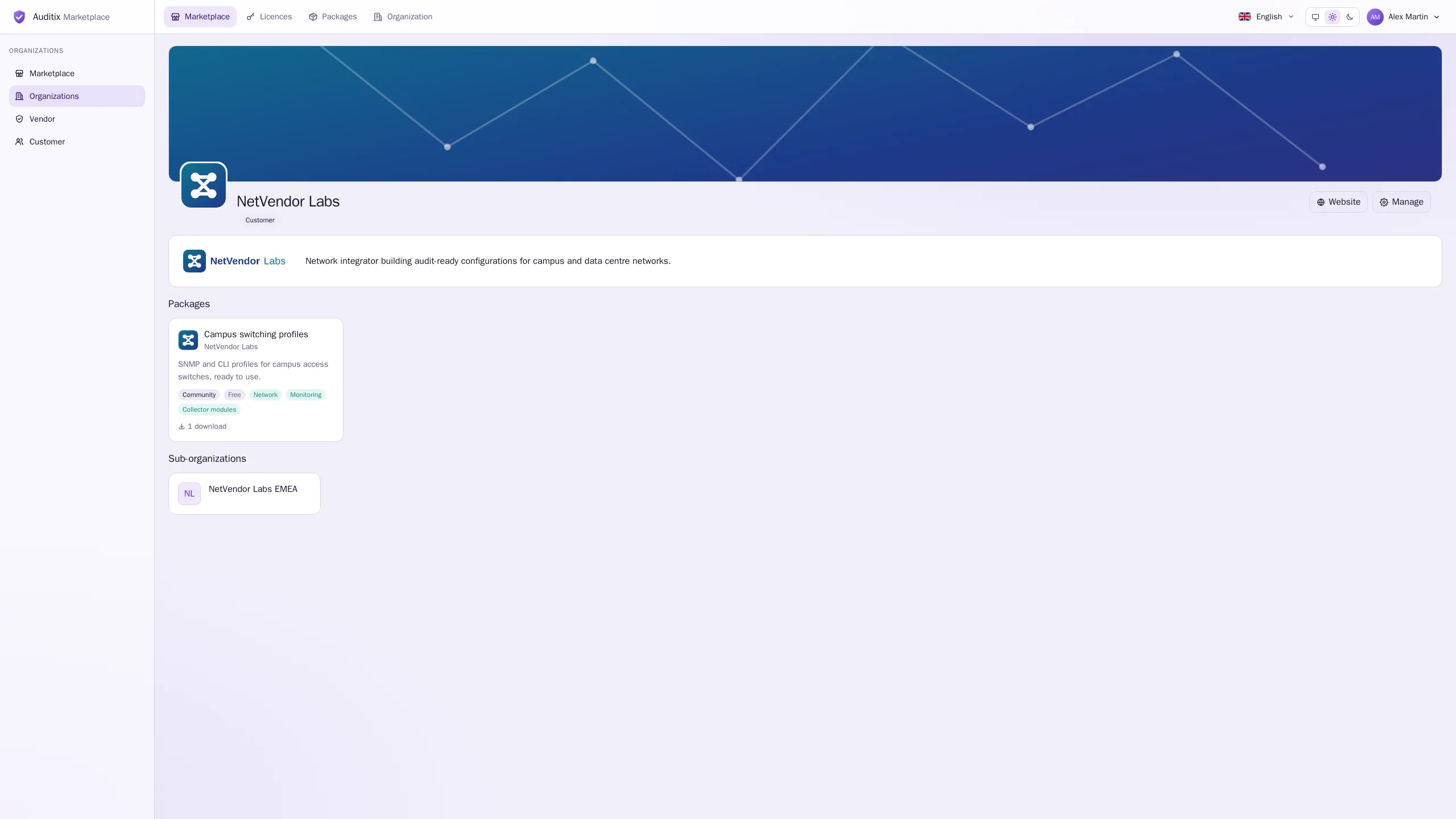
Editing the page in place
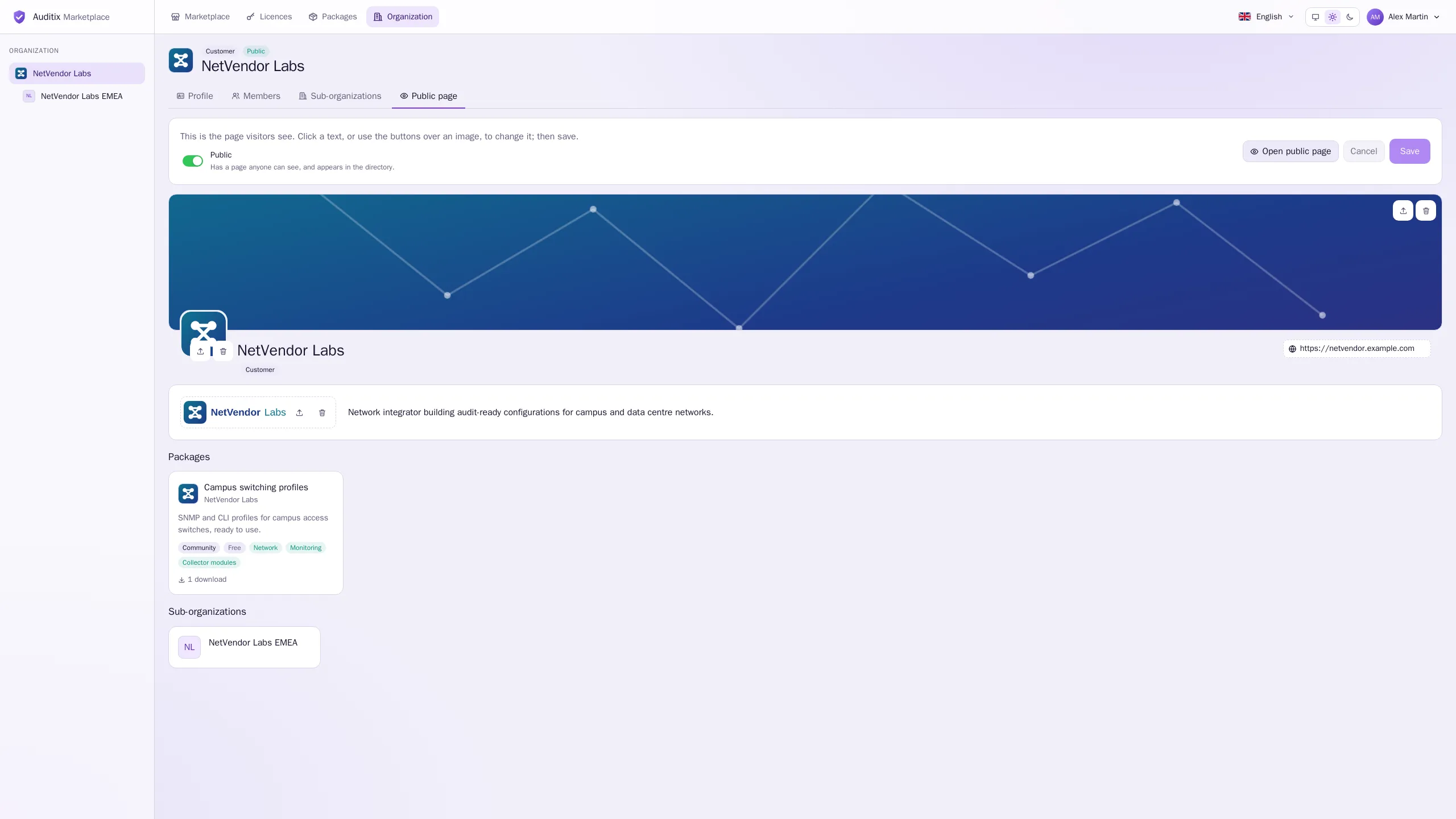
Section titled “Editing the page in place”The Public page tab of the organization space shows the very page visitors see, and you edit it where it is. You need Edit the organization; without it the tab is read-only.
- Open Organization in the top bar, choose the organization, then the Public page tab.
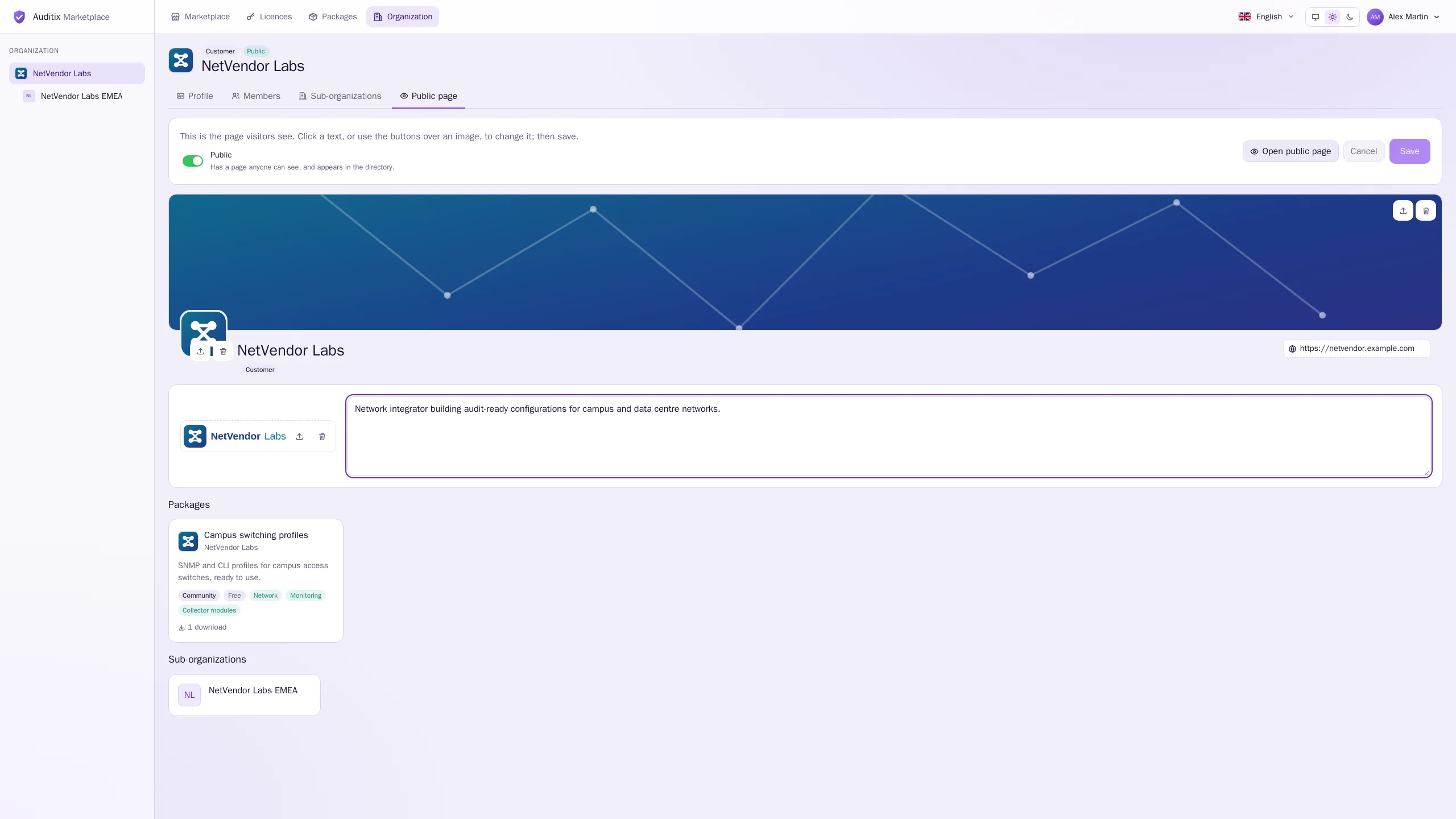
- Click a text to change it: the name, the description (Add a description of the organization when empty) or the website (Add a website). Enter (on one line) or leaving the field keeps what you typed; Escape puts back what it held.
- Use the buttons over an image to Upload or Replace it, or Remove it. The new image is previewed at once.
- Select Save to publish the changes, or Cancel to go back to what is saved. Nothing is sent before Save; leaving the tab with unsaved changes asks you first.
Open public page opens the page as visitors see it (when it is public).
Images
Section titled “Images”| Image | Shape and minimum size | Formats and maximum size |
|---|---|---|
| Icon | Square, at least 64 × 64 px | PNG, JPEG or WebP, up to 1 MB |
| Logo | Wide, at least 120 × 40 px | PNG, JPEG or WebP, up to 2 MB |
| Banner | At least 960 × 200 px, across the top of the page | PNG, JPEG or WebP, up to 5 MB |
The icon also appears on the package cards of the organization and in the directory. An image that is too small to be shown sharp, too large or in another format is refused: pick another one or remove it.
The website must be a full address, such as https://www.example.com.
Making the page public or private
Section titled “Making the page public or private”The Public switch at the top of the tab sets the visibility of the organization:
- On (green): Has a page anyone can see, and appears in the directory.
- Off (red): Only seen by its members, those above it and the Auditix team.
Like the other changes, it applies when you select Save.