Members
The Members tab of an organization (Organization in the top bar, then the organization) lists its members: First name, Last name, Email address, Role and Member since. Members of the organizations above it are not listed but have the same rights here (Members of a parent organization have the same rights here.).
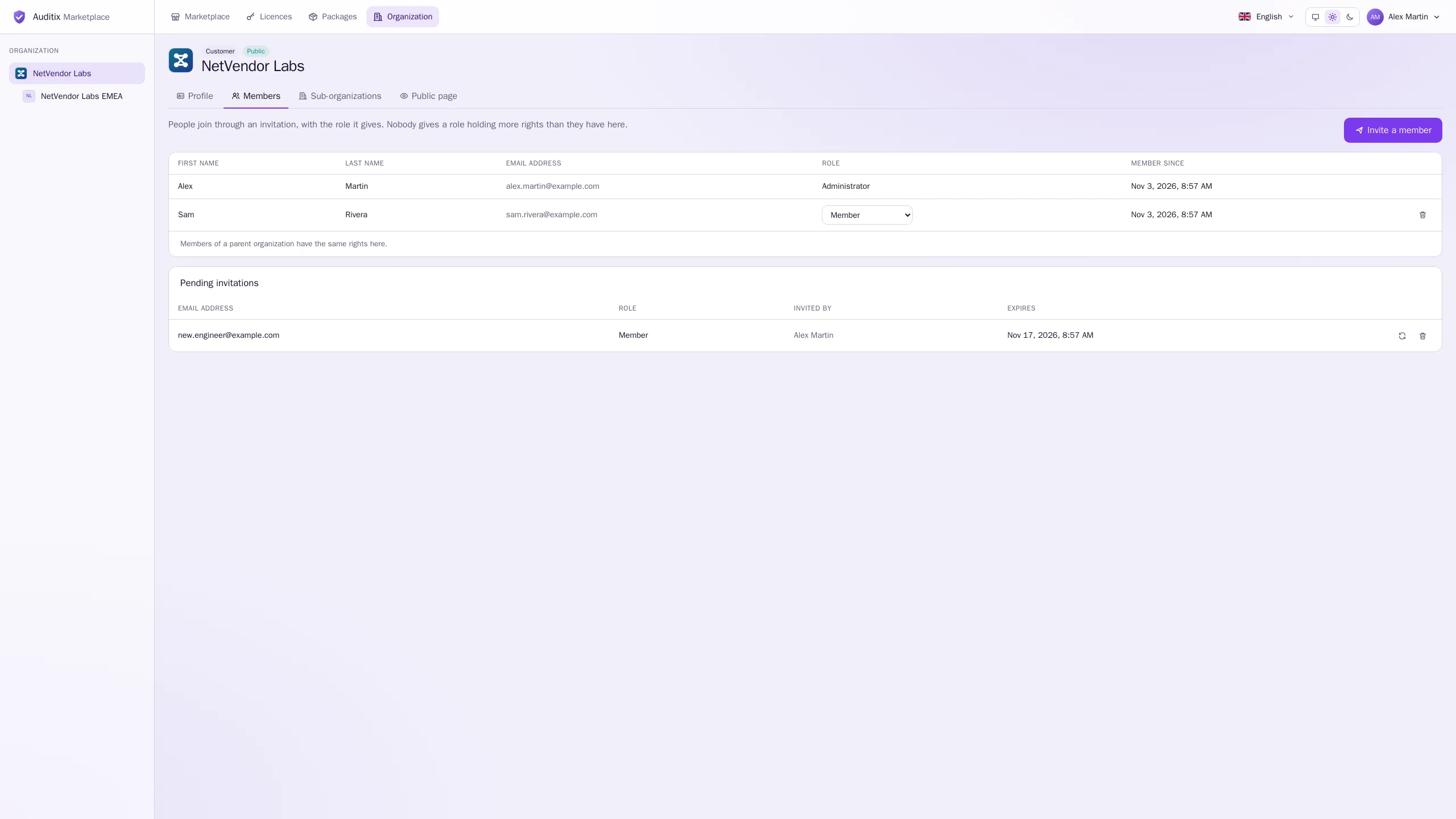
Each member has one role in the organization. The built-in roles are:
| Role | What it gives |
|---|---|
| Administrator | Every right in the organization and its sub-organizations. |
| Publisher | Publishes the packages of the organization. |
| Member | Sees the members and the licences of the organization. |
The Auditix team may define other roles. A role is a set of rights among these:
| Right | Allows |
|---|---|
| See the members | Open the Members tab. |
| Manage the members | Invite people, change roles, remove members, renew and revoke invitations. |
| Edit the organization | Change its address and its public page, and switch its visibility. |
| Manage the sub-organizations | Create and delete sub-organizations. |
| See the licences | See the licences held by the organization. |
| Manage the licences | Take Community licences in its name, activate and deactivate licences, connect platforms. |
| Publish packages | Create and edit packages in its name, publish their versions. |
| Certify packages | Certify packages (vendor organizations). |
What a member may do in an organization, they may also do in all its sub-organizations.
Inviting someone
Section titled “Inviting someone”People only join an organization through an invitation. You need Manage the members.
-
On the Members tab, select Invite a member.
-
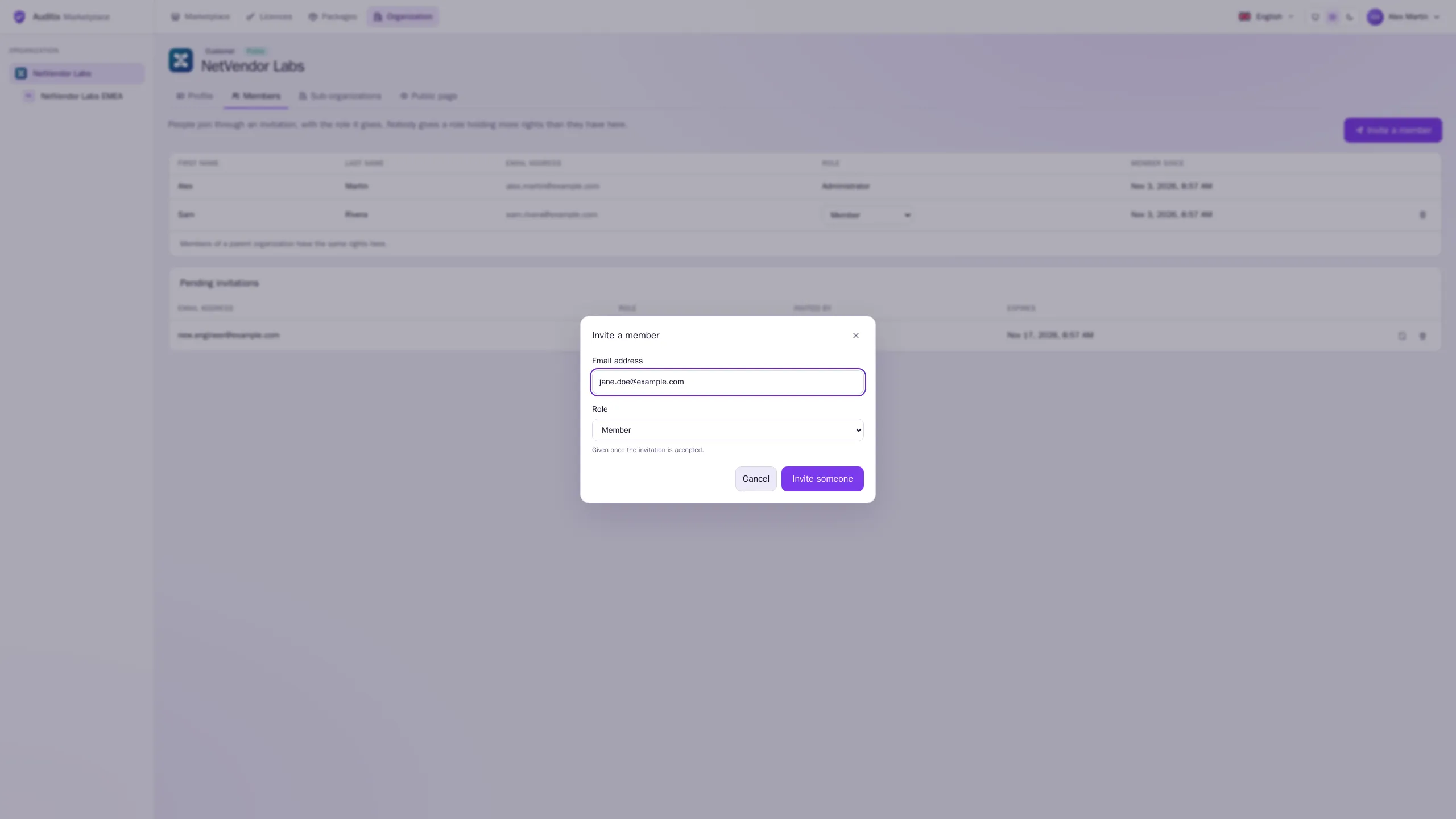
Enter the Email address of the person and choose the Role they get once they accept (Member by default).
-
Select Invite someone. The Invitation link is shown once: copy it and send it to the person yourself (no email is sent by the marketplace).
-
The person opens the link and creates an account, or signs in with the account that uses this address, then accepts. See Accepting an invitation.
Pending invitations
Section titled “Pending invitations”The Pending invitations table lists the invitations not yet accepted: Email address, Role, Invited by and Expires (or Expired).
- New link makes a new link for the same invitation (the previous link stops working), with a new 14-day period. Use it when the link was lost or has expired.
- Revoke cancels the invitation.
Changing a role or removing a member
Section titled “Changing a role or removing a member”With Manage the members, change a member’s role directly in the Role column; the change applies at once. Remove takes the member out of the organization; they keep their account.