Browsing the catalogue
Packages extend your Auditix platform: manufacturers and models of network equipment, ready-made SNMP and CLI connection profiles, and more as the platform grows. The Marketplace application of the top bar is where you find them.
What you can see
Section titled “What you can see”| Who | Sees |
|---|---|
| Visitor (signed out) | Packages Published by Auditix and packages Certified by the vendor, and the public organizations |
| Signed-in account | The above, plus Community packages, and the private or shared packages of your organizations |
A package that is still a draft is only seen by its editors. A filter of the catalogue reminds visitors: Community packages are visible once signed in.
The home page
Section titled “The home page”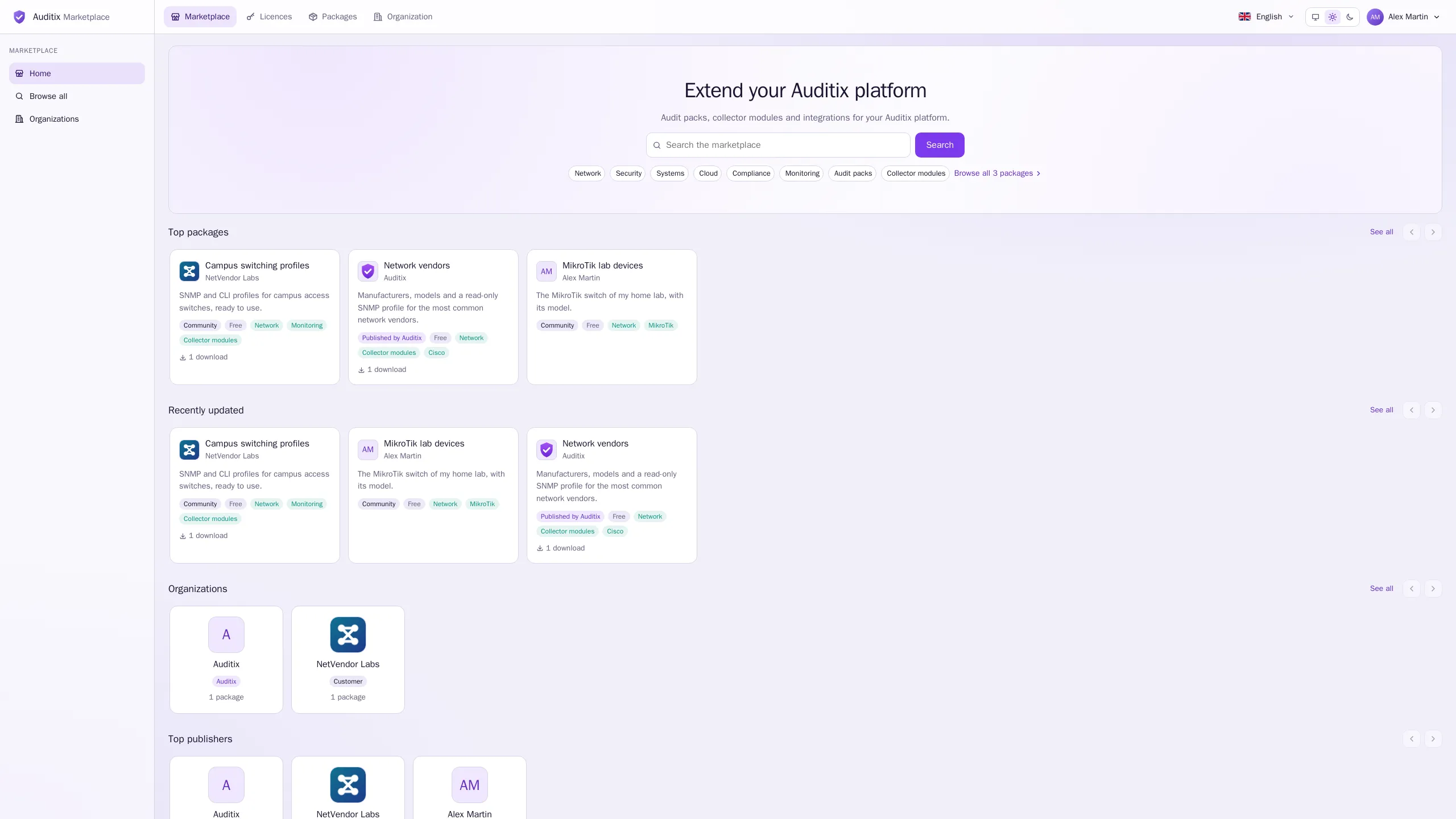
The home page (Home in the sidebar) opens with a search box (Search the marketplace) and shortcuts to the categories, then rows you scroll sideways with the arrow buttons (or the arrow keys once a row has the focus):
- Top packages: the most downloaded first.
- Recently updated: the last published first.
- Organizations: the public organizations, those with the most packages first.
- Top publishers: organizations and people whose packages are downloaded the most.
See all and Browse all … packages open the full catalogue.
Searching and filtering
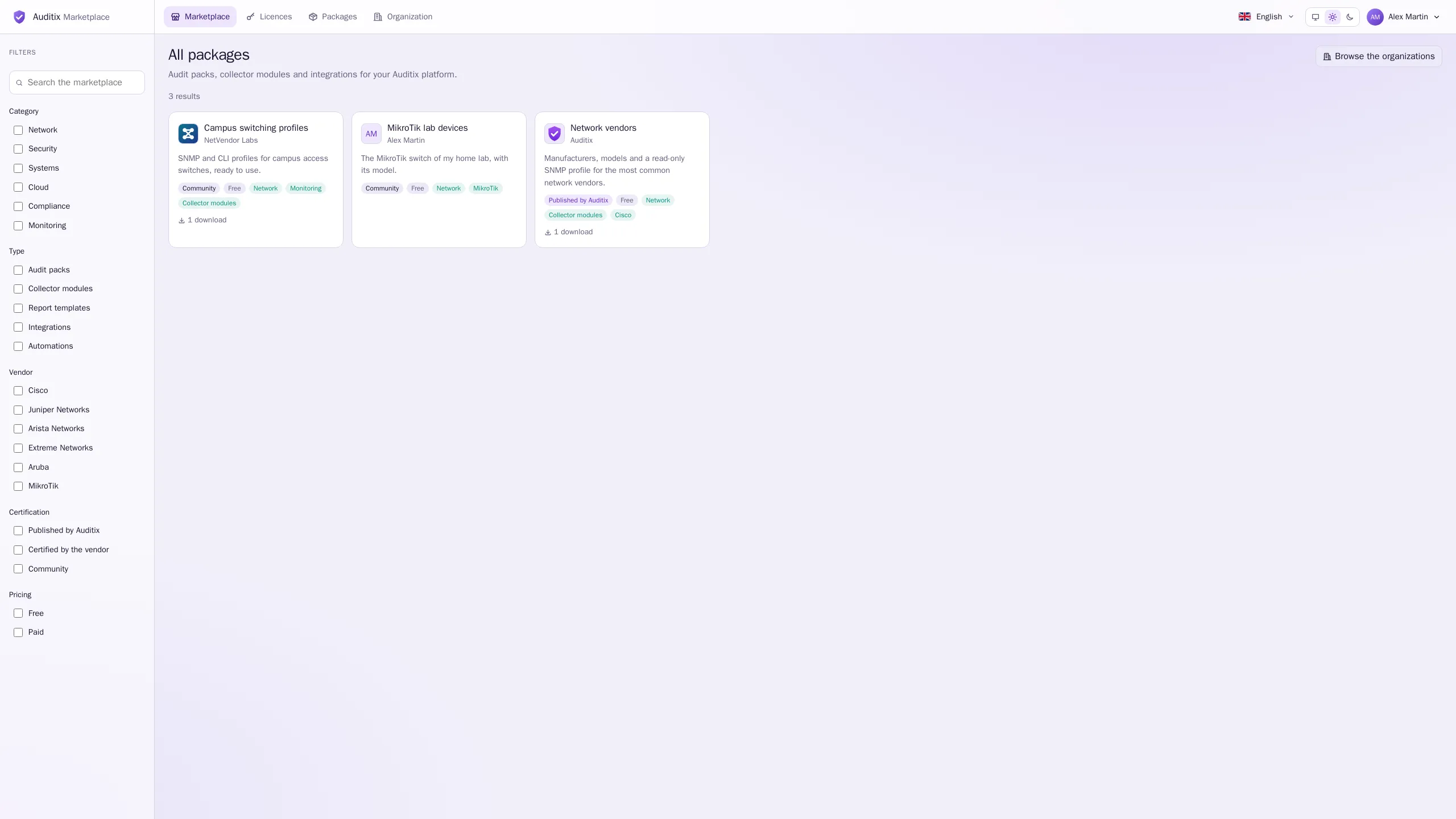
Section titled “Searching and filtering”Browse all in the sidebar opens the catalogue with every package you may see. The sidebar holds the Filters:
| Filter | Choices |
|---|---|
| Category | Network, Security, Systems, Cloud, Compliance, Monitoring |
| Type | Audit packs, Collector modules, Report templates, Integrations, Automations |
| Certification | Published by Auditix, Certified by the vendor, Community |
| Pricing | Free, Paid |
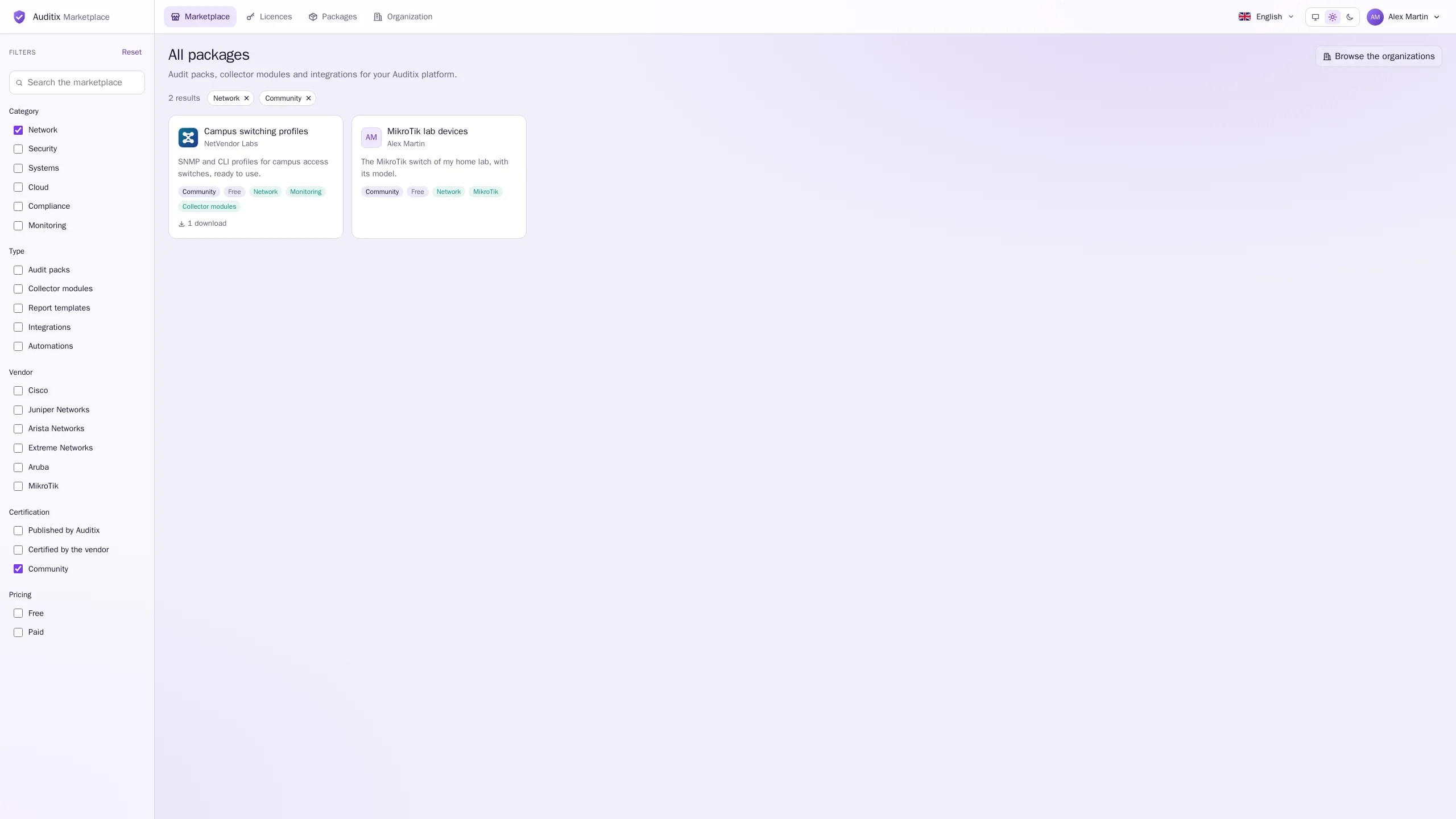
The categories and types are maintained by the Auditix team and may grow. Pick any number of choices; the count of results is shown above the list, and Reset clears every filter.
Certification badges
Section titled “Certification badges”Each package card and page carries one badge telling who stands behind it:
| Badge | Meaning |
|---|---|
| Published by Auditix | Published by the Auditix team (official package). |
| Certified by the vendor | A package about a vendor’s products, certified by that vendor’s organization on the marketplace. |
| Community | Published by any account or organization, without certification. Visible once signed in. |
Whatever the badge, every package file is signed by its publisher: see Publisher key for what that guarantees on your platform.
Pricing
Section titled “Pricing”A package is Free or Paid. Paid packages cannot be downloaded yet: their page shows a Paid lock instead of the download buttons (Paid packages cannot be downloaded yet.).
The package page
Section titled “The package page”Select a card to open its package. The page lives at /catalogue/<publisher>/<package>, for example
/catalogue/auditix/network-vendors.
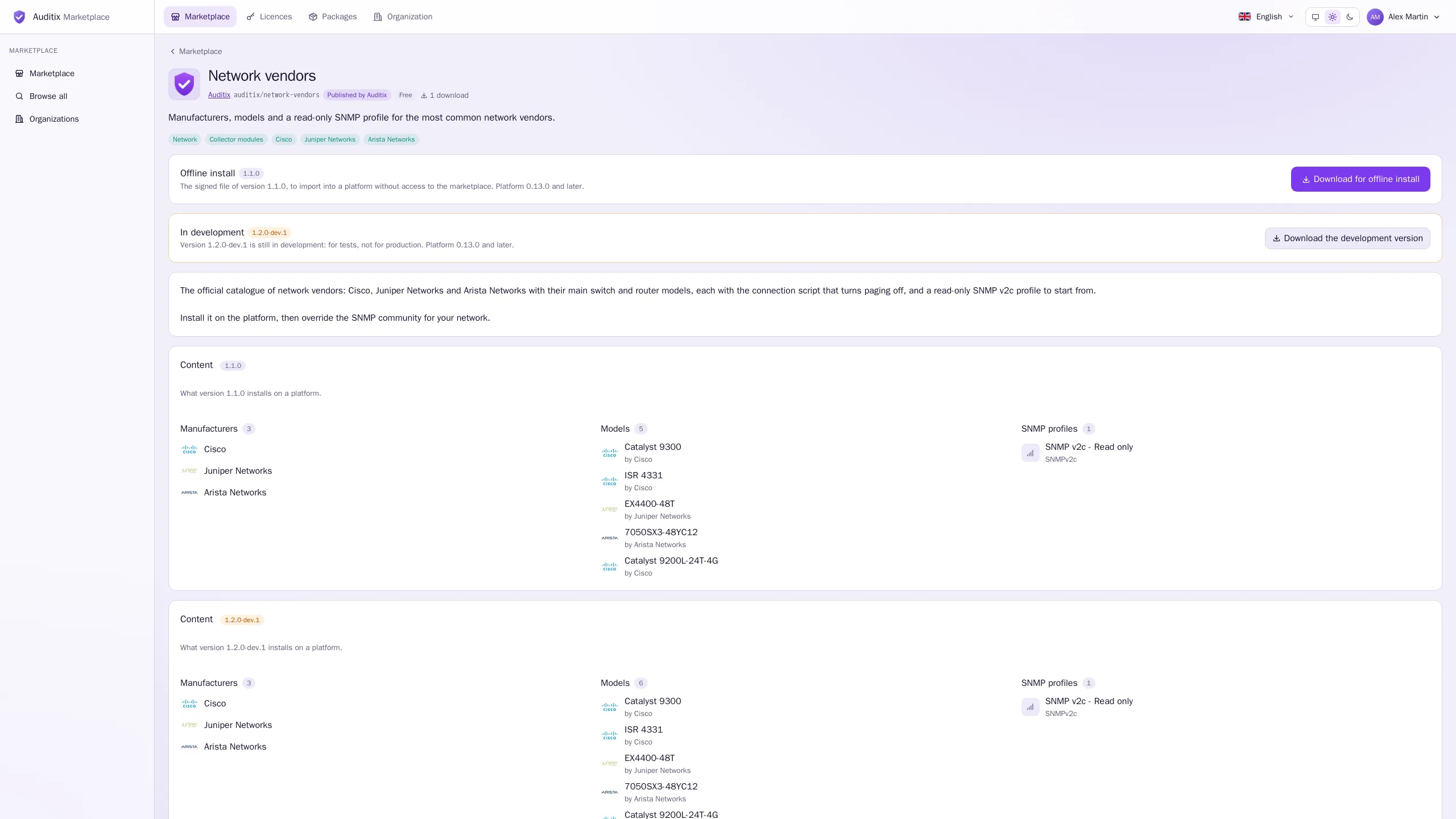
From top to bottom:
- Head: the logo and name, the publisher (a link to its page when that page is public), the package address, the certification and pricing badges, and the number of downloads. If you may edit the package, an Edit button opens it in the editor.
- Summary and tags (categories and types).
- Offline install: the latest stable version, the platform versions it runs on, and Download for offline install.
- In development: when a newer development version exists, marked apart with its own button, Download the development version. It is meant for tests, not for production.
- Description.
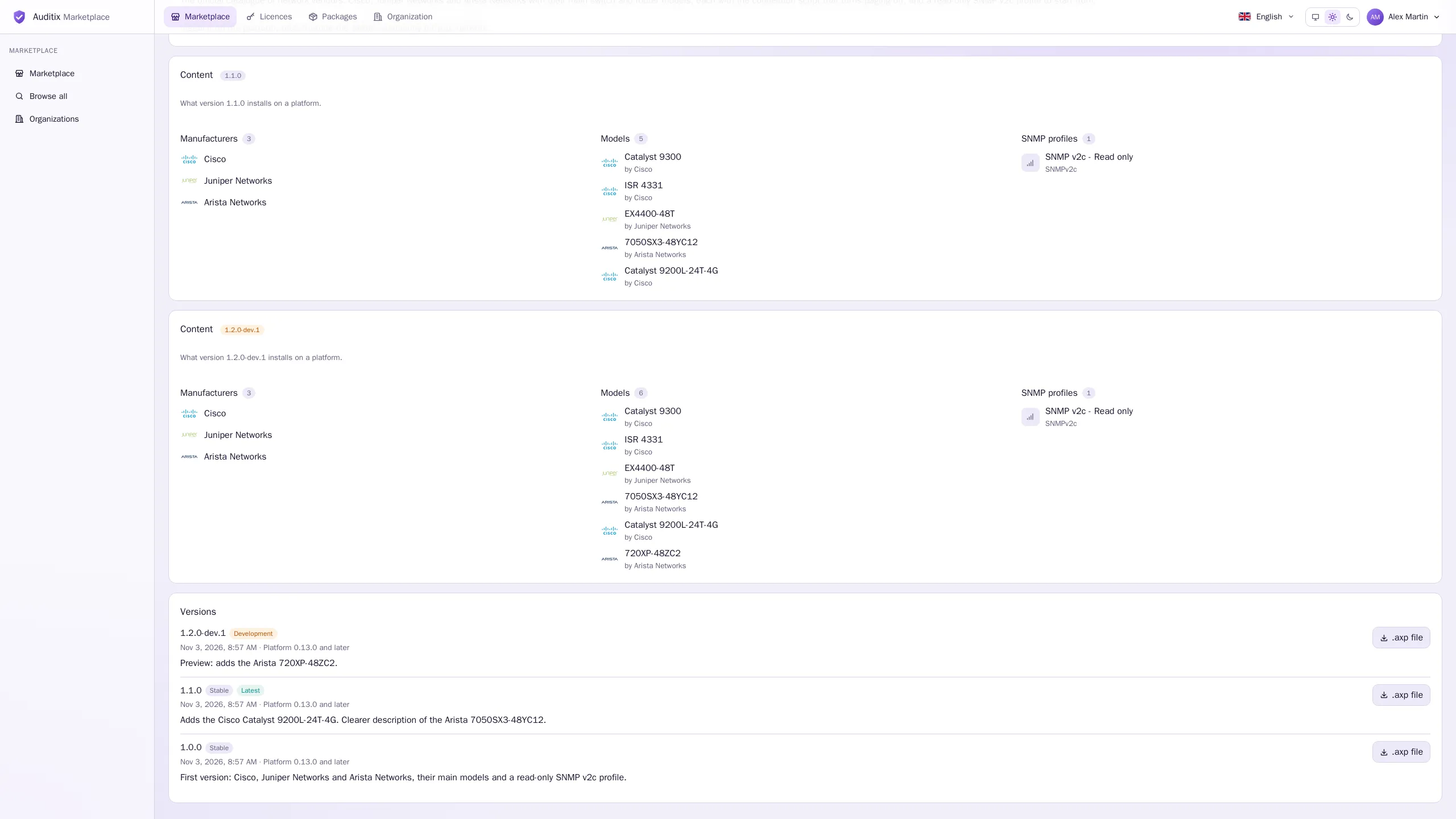
- Content: what each version installs on a platform: its Manufacturers, Models, Profiles, SNMP profiles and CLI profiles. Profiles list the names of their additional credentials and custom variables; secret values are never shown.
- Versions: the history, newest first, each with its channel, date, platform compatibility, changelog and its own .axp file.
Installing a package
Section titled “Installing a package”There are two ways to get a package onto your platform:
- Connected platform: a platform connected to the marketplace browses and installs packages itself, and is offered their updates. It sees the packages the holder of its licence may see. See Installing packages.
- Offline platform: download the file here and import it on the platform.
- Open the package page and select Download for offline install (or a version’s .axp file
in Versions). You get a file named
<publisher>-<package>-<version>.axp, for exampleauditix-network-vendors-1.1.0.axp. - Copy the file to a computer that can reach your platform.
- Import it on the platform: see Installing packages.
Before installing, the platform checks the signature of the file and that its own version is within the platform compatibility of that package version.
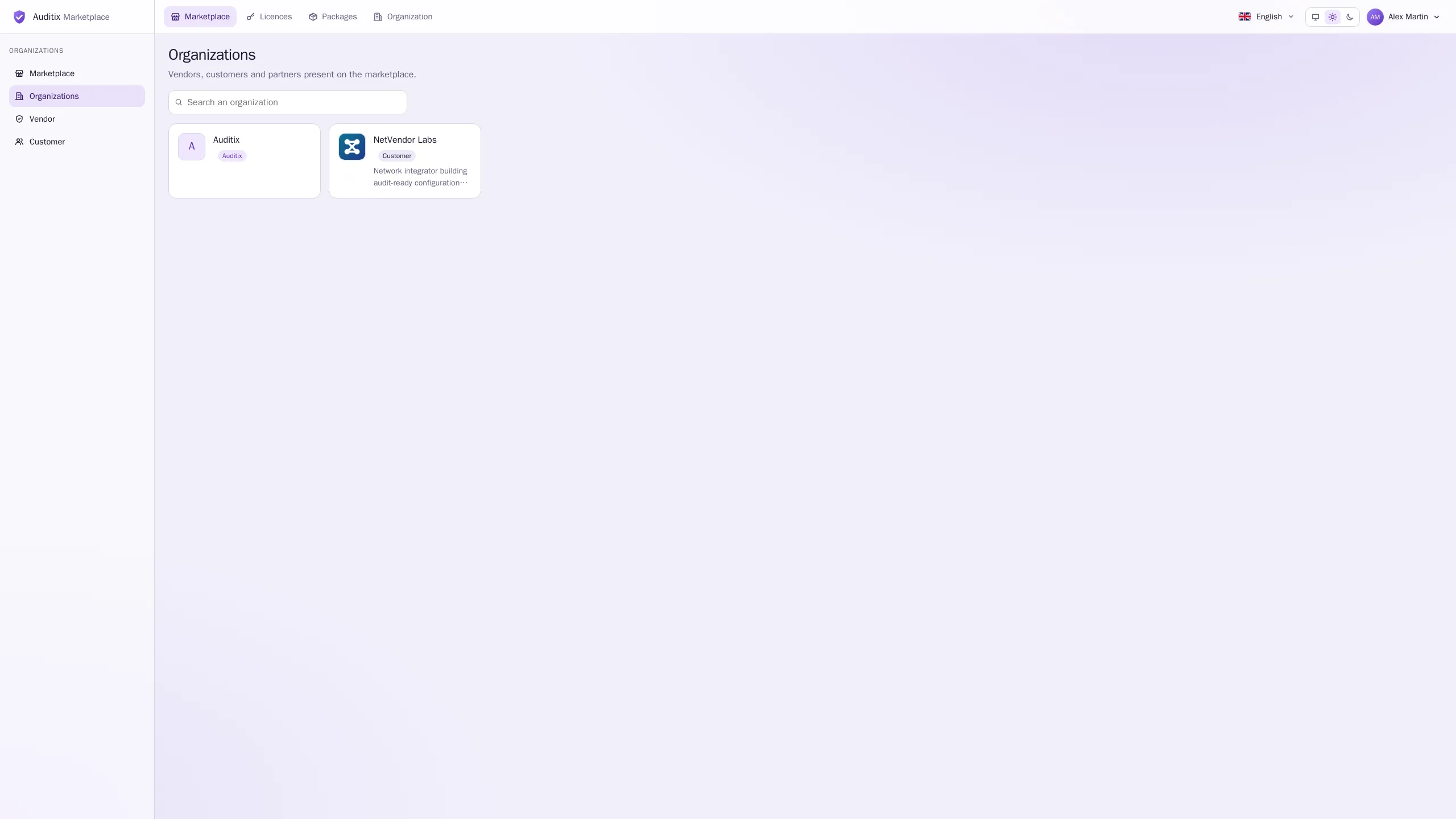
The directory of organizations
Section titled “The directory of organizations”Organizations in the sidebar lists the public organizations: vendors, customers and partners. Search with Search an organization or pick a type in the sidebar (Vendor, Customer). Each organization has a page with its banner, logo, description, website and the packages it publishes. See Organizations.