Installing packages
Open Settings › Platform › Plugins to install for the whole platform, or Settings › Tenant › Plugins to install for the current tenant only. Installing needs the Manage permission of the plugins.
The Catalogue tab lists the packages of the marketplace your licence may see. It needs an instance connected to the marketplace (see Licence activation) with the marketplace allowed in Settings › Platform › General › Connections. Otherwise the tab says so, and you can still use Offline import.
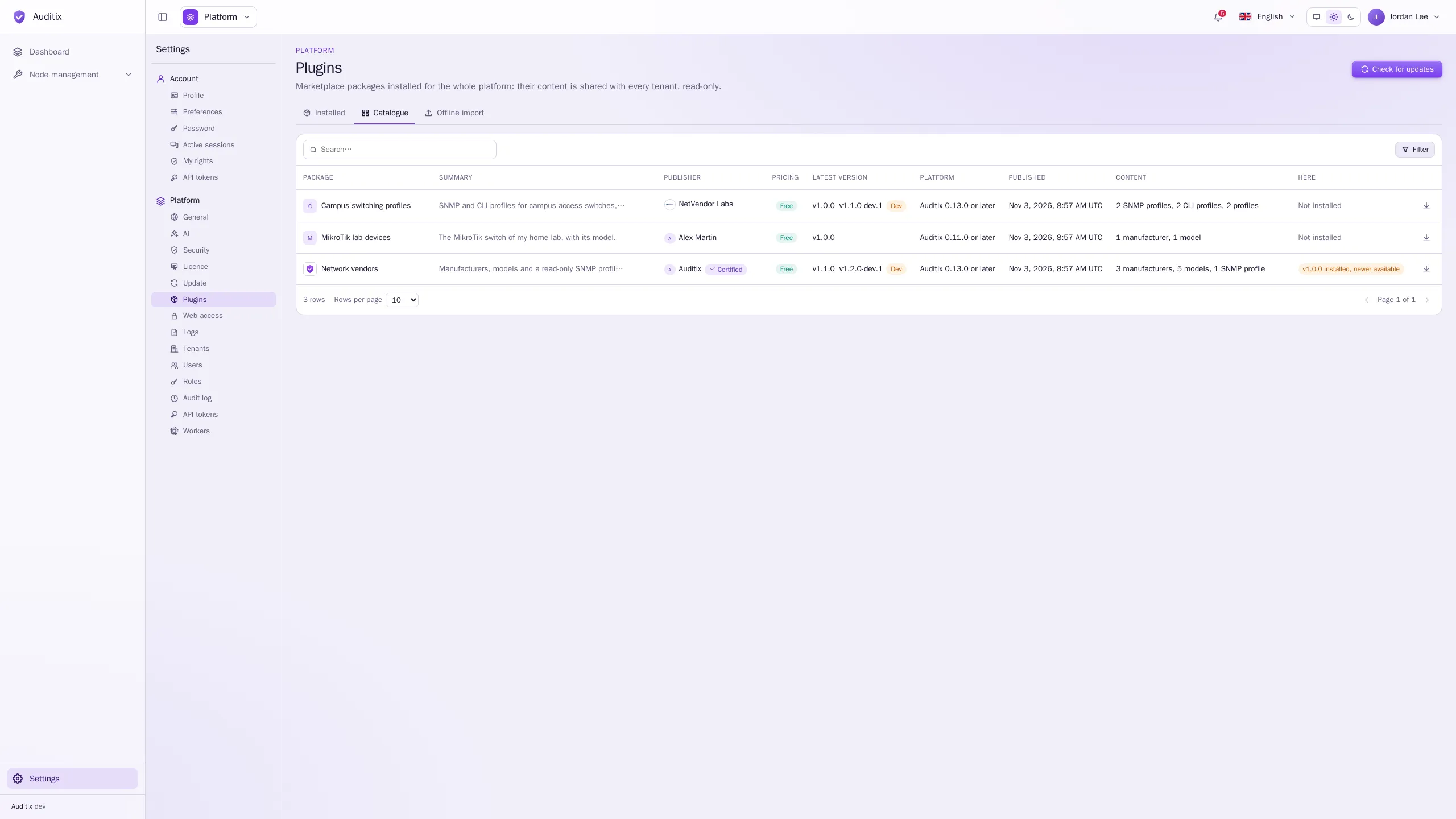
For each Package: its Summary, Publisher, Pricing, Latest version, the versions of Auditix it supports (Platform), its Content, and whether it is installed Here.
-
Click the install button of the package’s row.
-
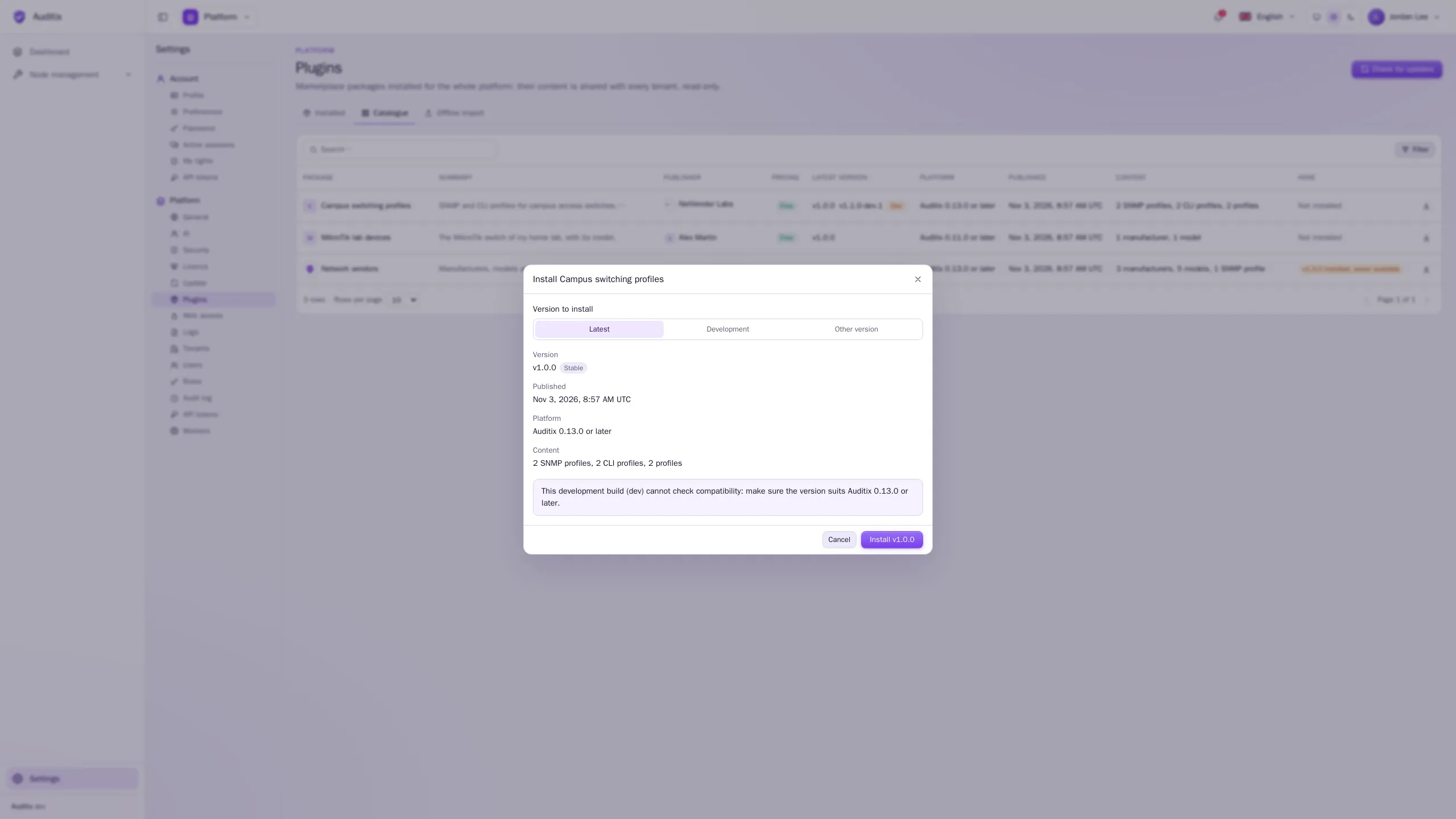
In the window Install …, choose the Version to install: Latest (the latest stable version, by default), Development (when the package has one) or Other version. The window shows the version, its date, the versions of Auditix it supports and its content.
-
Click Install v….
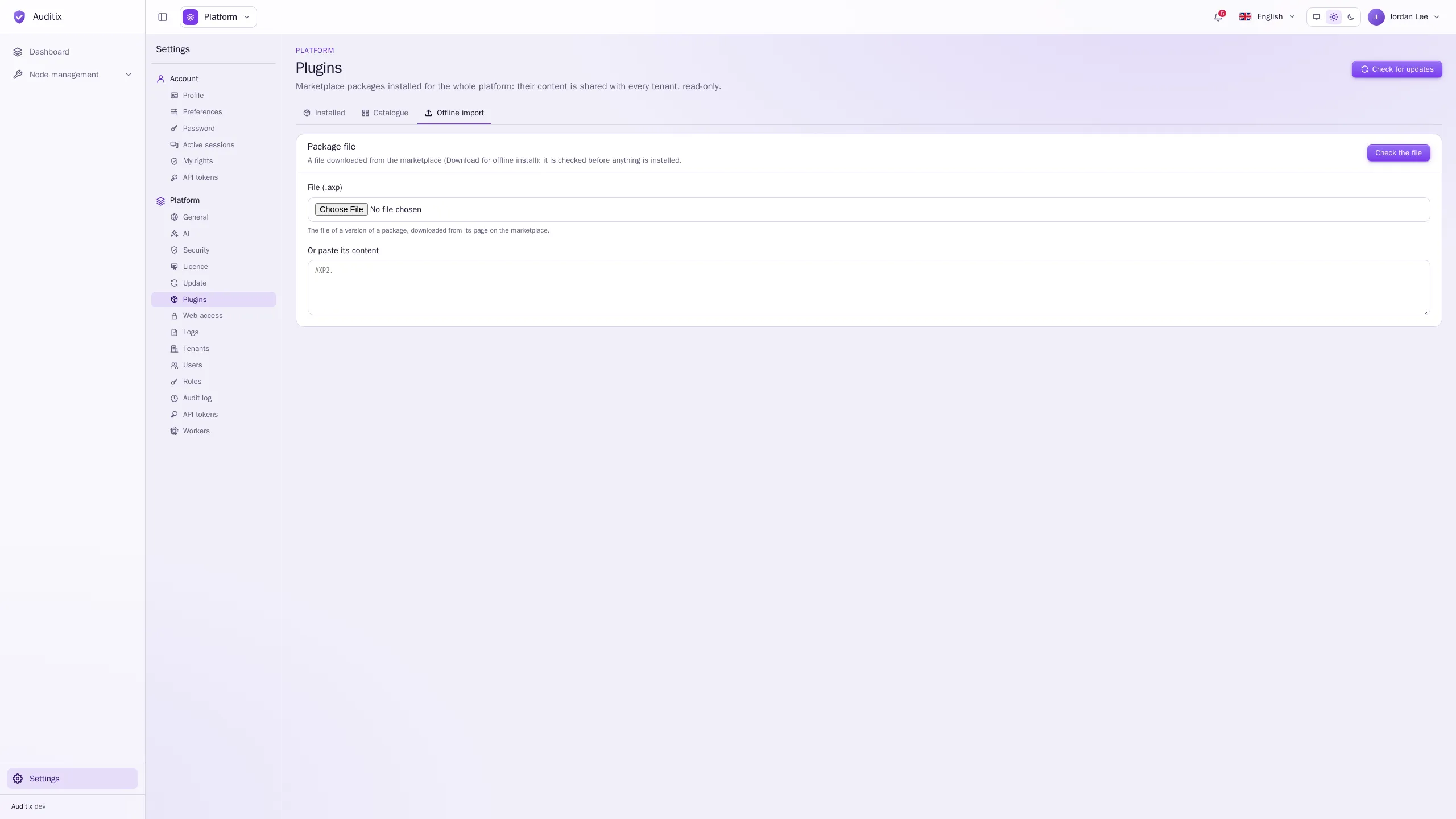
For instances without Internet access, or for a package file you received.
-
On the marketplace, open the package and its version, and use Download for offline install. You get a
.axpfile. -
In Auditix, open the Offline import tab. Choose the file in File (.axp), or paste its content in Or paste its content.
-
Click Check the file. Nothing is installed yet: Auditix verifies the file and shows what it would install: the package and its publisher, the signature (Signed by … , certified by the Auditix marketplace), the version and its channel, the versions of Auditix it supports, its content, and how it relates to what is installed (a new install, an update, a downgrade, or This version is already installed.).
-
Read the preview, then confirm to install.
The whole file is checked before anything is installed: its signature, its compatibility with your version of Auditix, and every item it holds. Any problem refuses the whole file, with a sentence per problem.
Once installed, the content appears in Node management, with the plugin as its origin. Set your own credentials for its SNMP and CLI profiles and profiles (see Shared items & overrides): a package only brings the publisher’s defaults, and never a private key.
Why the catalogue may be unavailable
Section titled “Why the catalogue may be unavailable”| Message | What to do |
|---|---|
| Connections to the marketplace are turned off… | Turn on Check the licence on the marketplace in Settings › Platform › General › Connections, or use Offline import. |
| This instance is not connected to the marketplace… | Connect the instance in Settings › Platform › Licence, or use Offline import. |
| Paid packages are not available yet. | Paid packages cannot be installed for now. |
| This package is not available on the marketplace. | The package or version was withdrawn, or your licence no longer sees it. |
| The marketplace cannot be reached. | Check the network access of the instance, then try again. |