Tenants
A tenant is an isolated organization with its own members and data (see Overview & concepts). Platform administrators manage every tenant in Settings › Platform › Tenants (permissions Tenants › View, Create, Edit, Delete); the administrators of a tenant manage it from inside, in Settings › Tenant.
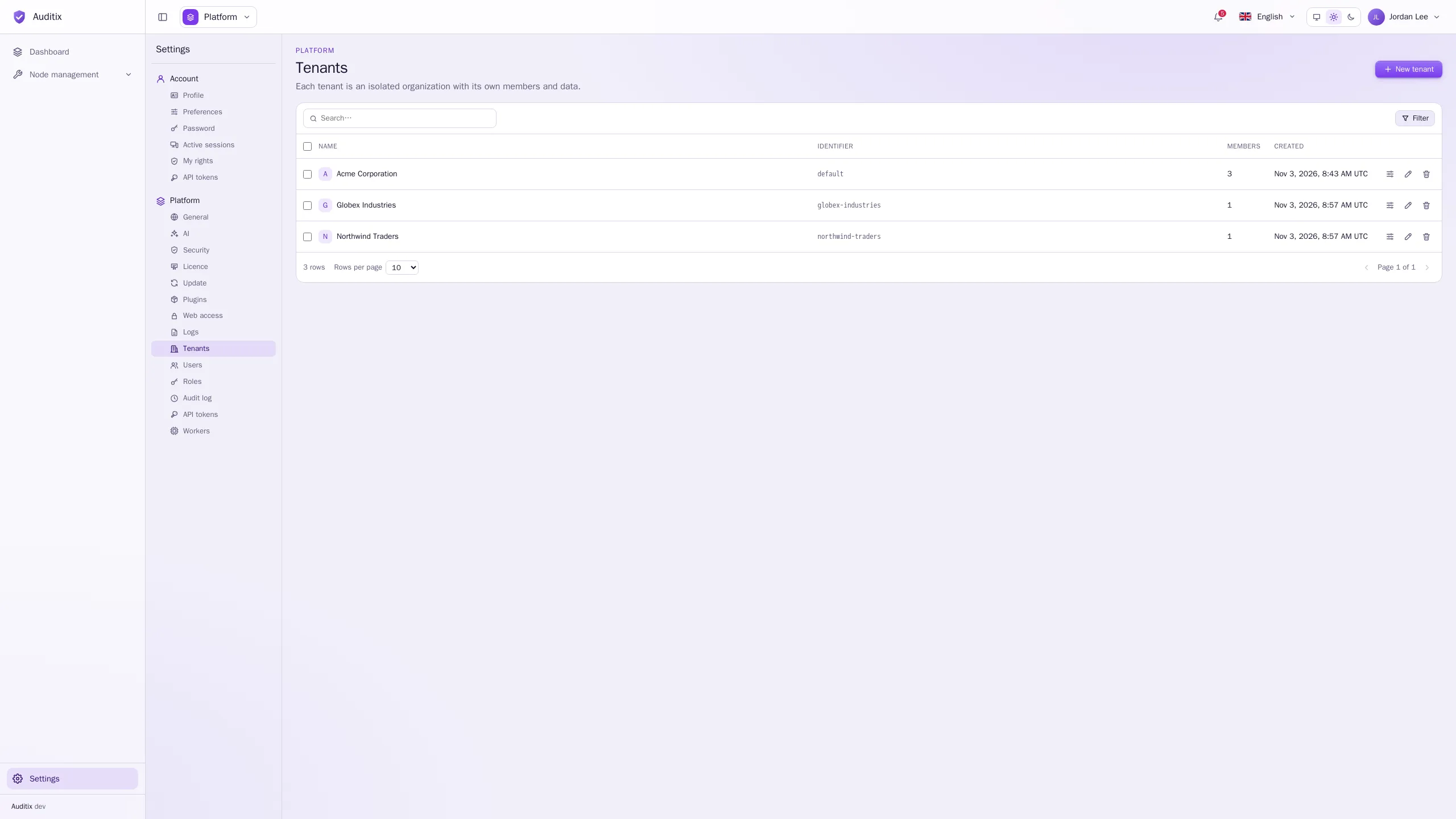
The table shows each tenant’s Name, Identifier, number of Members and creation date. A tenant without any member holding the Administrator role is flagged No administrator: only platform administrators can manage it. The Filter panel finds tenants with or without members or an administrator.
Create a tenant
Section titled “Create a tenant”-
Click New tenant, type its Name and click Create tenant. Its Identifier is derived from the name and never changes.
-
Click Manage on its row (or on the platform dashboard), open Members and add its first administrator (see below).
How many tenants you can create depends on the licence.
Manage a tenant from the platform
Section titled “Manage a tenant from the platform”Manage opens the tenant’s settings without entering it: your own session stays where it is.
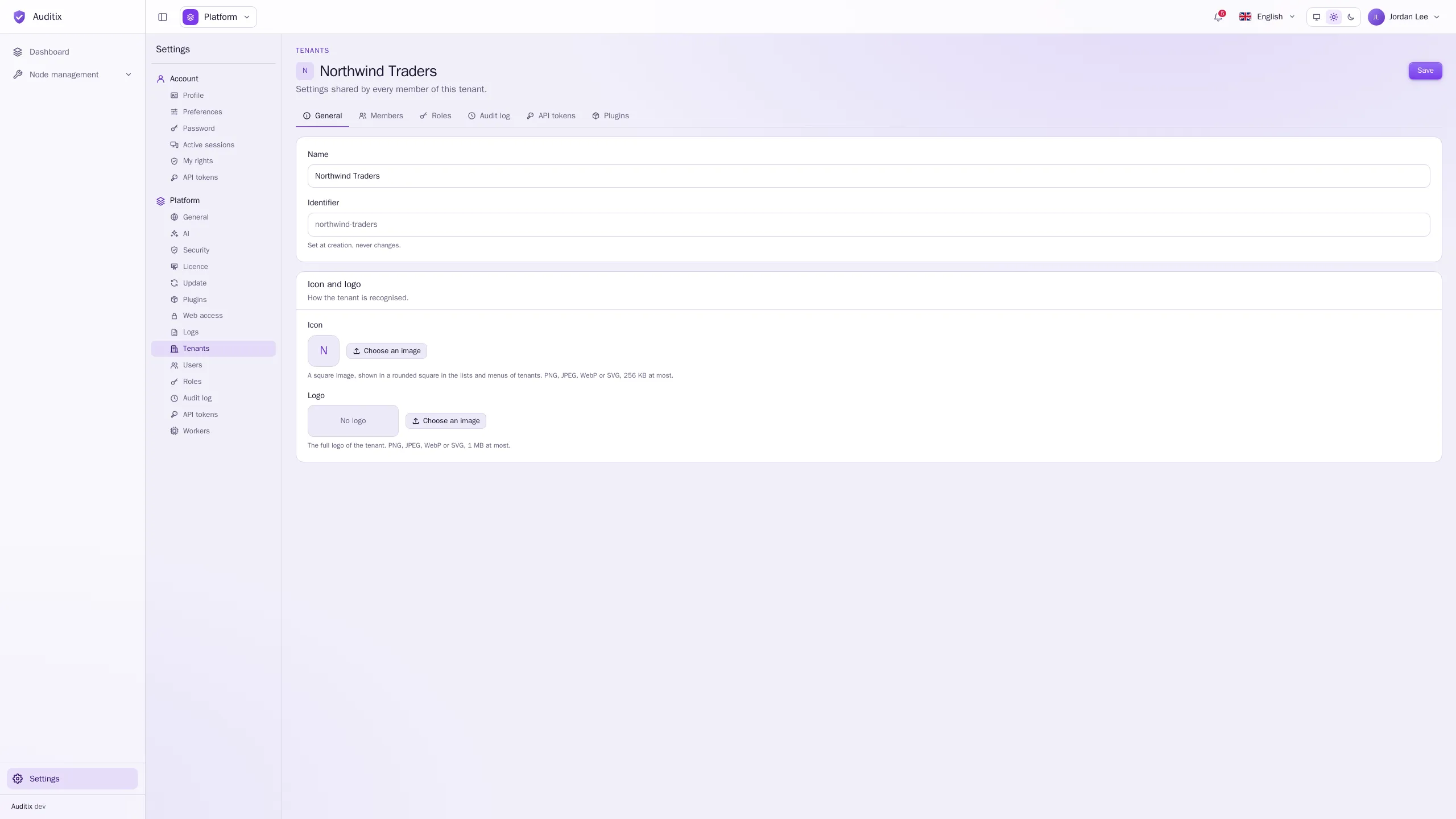
The tabs are those of Settings › Tenant inside the tenant:
- General: Name, Identifier (read-only), Icon (a square image shown in the lists and menus of tenants, 256 KB at most) and Logo (1 MB at most), in PNG, JPEG, WebP or SVG.
- Members: who belongs to the tenant, and their roles.
- Roles: the roles offered in the tenant (built-in, shared by the platform, and its own).
- Audit log: what happened in the tenant.
- API tokens: the tenant’s tokens for integrations.
- Plugins: the packages installed for this tenant.
Members
Section titled “Members”A member is an account with one or more roles in the tenant.
-
In Members, click Add a member.
-
Type the Email of the person and choose their Role (several roles add up).
-
Click Add member.
If no account uses this email yet, one is created, pending (Invitation pending) until its owner sets it up. Edit a member to change their roles; Remove from the tenant takes their access away but keeps their account.
Delete a tenant
Section titled “Delete a tenant”Click the bin of a row and type the tenant’s name to confirm. This permanently deletes the tenant, its memberships and its data. The accounts of its members are kept.
Frozen tenants
Section titled “Frozen tenants”When the licence allows fewer tenants than the instance holds, the tenants beyond the limit are frozen: kept as they are, but nobody can enter them. Choose which ones stay active in Settings › Platform › Licence (see Licence activation).