Users
Accounts are shared by all tenants: one person, one account, member of as many tenants as needed. They are managed in Settings › Platform › Users (permissions Users › View, Create, Edit, Delete).
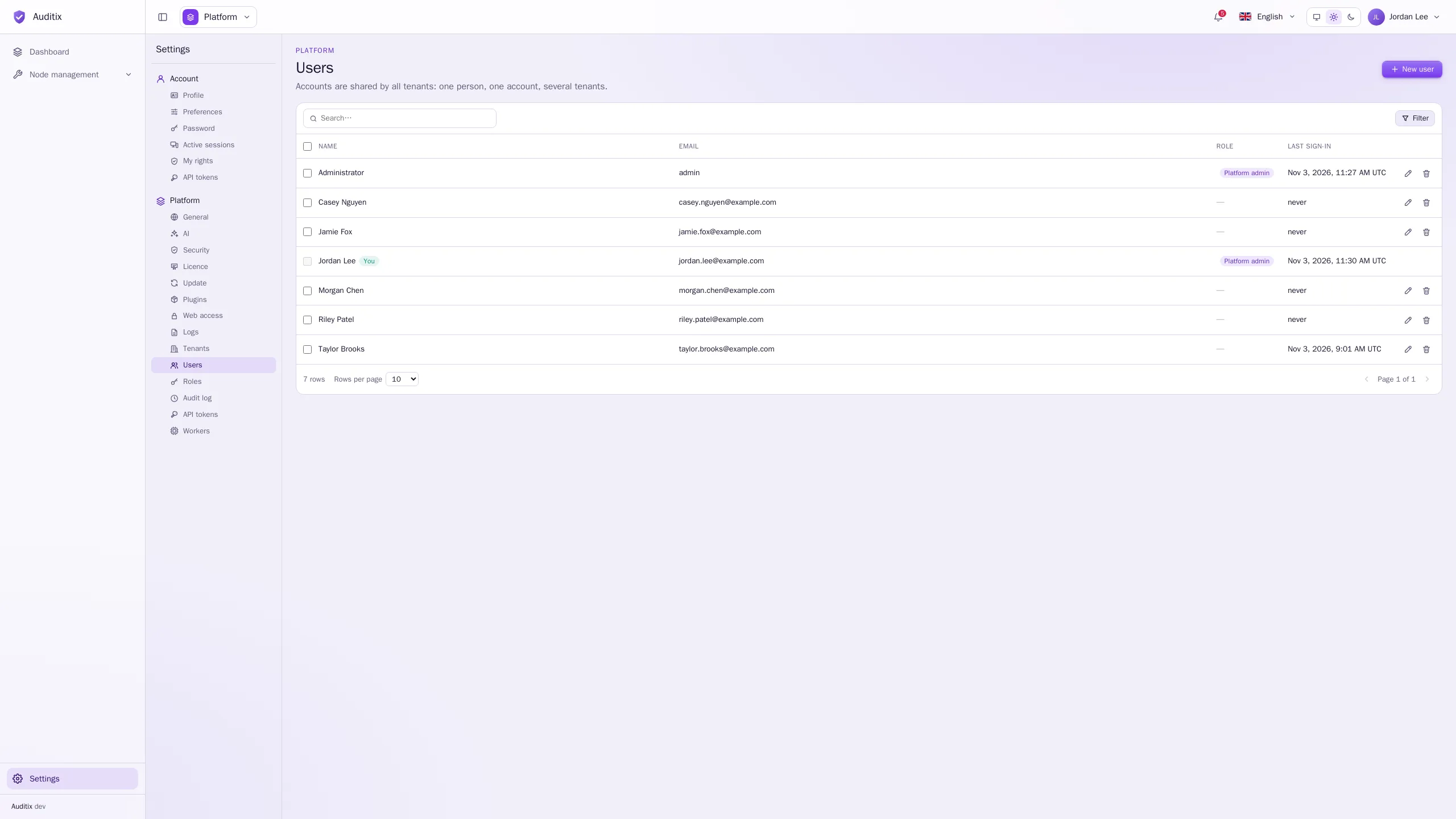
The table shows each account’s Name, Email, Role (Platform admin, or its platform roles) and Last sign-in. Click a row to open the account’s window, with three tabs:
- Information: email, status, role, preferred tenant, creation date and last sign-in;
- Rights: what the account may do, tenant by tenant, and which roles give it;
- Activity: what the account did and what was done to it (from the audit log).
Create a user
Section titled “Create a user”-
Click New user.
-
Fill in Email (used to sign in), First name and Last name.
-
Type an Initial password that follows the password policy. Share it through a secure channel: the user must choose their own password when they first sign in.
-
Optionally switch on Platform administrator (manages every tenant and every account), or give Platform roles to delegate only parts of the platform settings.
-
Click Create user.
To give the user access to a tenant, add them as a member of that tenant (see Tenants). Adding a member by an email no account uses yet also creates the account, pending until its owner sets it up.
Accounts can also be created from the server:
docker compose exec backend bin/console auditix:user:create jane@example.com \ --first-name=Jane --last-name=Doe --tenant="My company"Edit a user
Section titled “Edit a user”Click the pencil of a row (or Edit in its window) to change:
- First name and Last name (the email cannot change);
- Platform administrator and Platform roles;
- Preferred tenant: the tenant the account lands in after signing in (or None: the platform view for a platform administrator);
- Active account: off, the account cannot sign in and is signed out everywhere;
- New password: leave empty to keep the current one. A new password signs the account out everywhere.
Delete a user
Section titled “Delete a user”Click the bin of a row and type the email to confirm. This permanently deletes the account, its memberships and its sessions. To remove someone from one tenant only, remove the membership instead (see Tenants). Several users can be selected and deleted at once.
Users manage their own account
Section titled “Users manage their own account”Every user has Settings › Account: Profile (first and last name), Preferences (language, theme, preferred tenant), Password, Active sessions, My rights and API tokens.