CLI profiles
A CLI profile says how to open a command-line session on equipment: the protocol, its port and how Auditix signs in. Open Node management › Profiles › CLI. CLI profiles are then used by profiles.
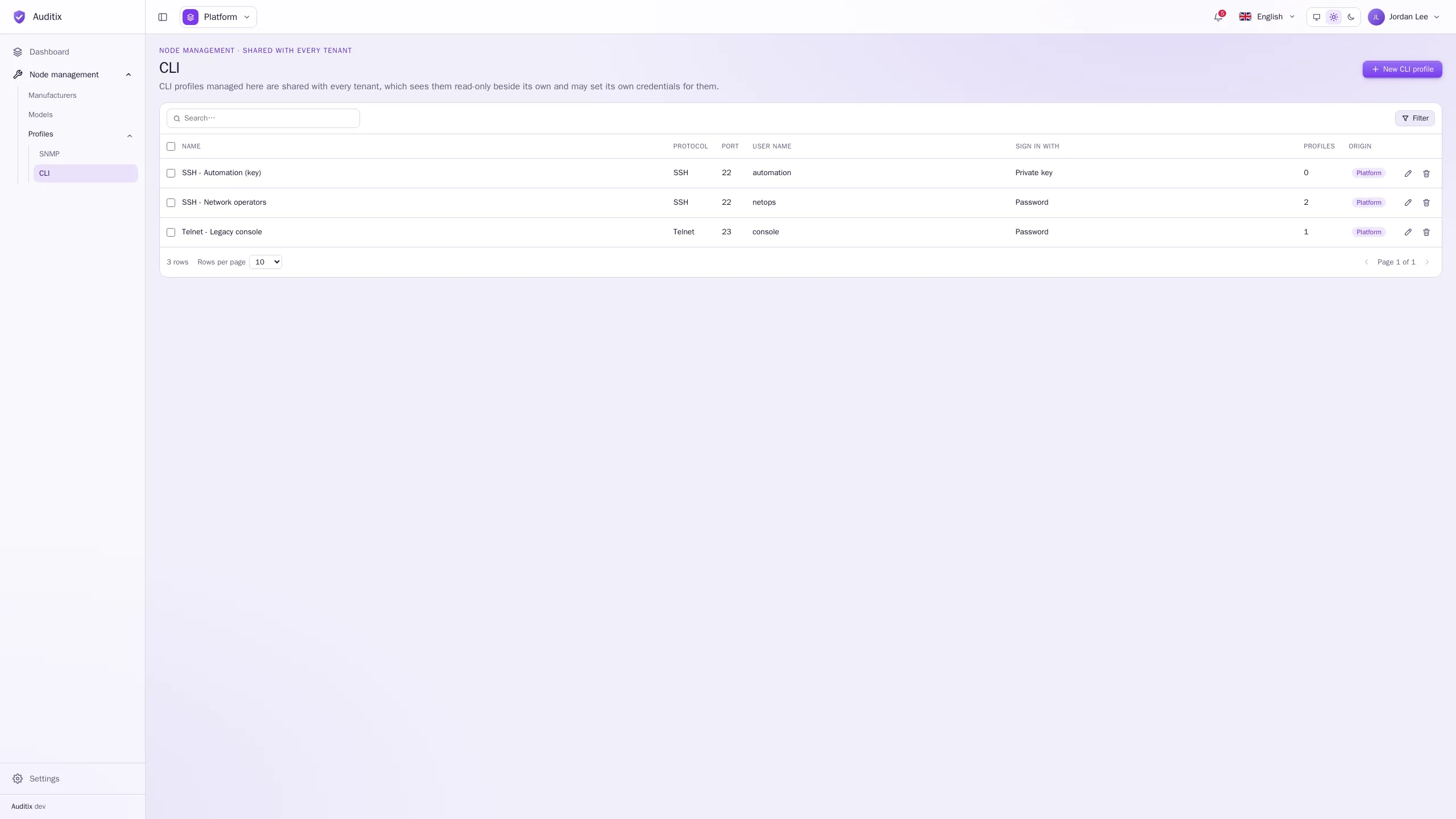
The table shows each profile’s Name, Protocol, Port, User name, how it signs in (Sign in with), how many Profiles use it, and its Origin.
Create a CLI profile
Section titled “Create a CLI profile”-
Click New CLI profile.
-
Give it a Name and, optionally, a Description.
-
Choose the Protocol: SSH or Telnet. The Port follows (22 for SSH, 23 for Telnet) unless you type another one.
-
Fill in the User name (optional: Telnet may sign in with a password only), then how to sign in (see below) and, if the equipment asks for one, the Enable password.
-
Click Create the CLI profile. It opens on its page, with a General tab and a Credentials tab.
Signing in
Section titled “Signing in”Sign in with: Password, then type the Password.
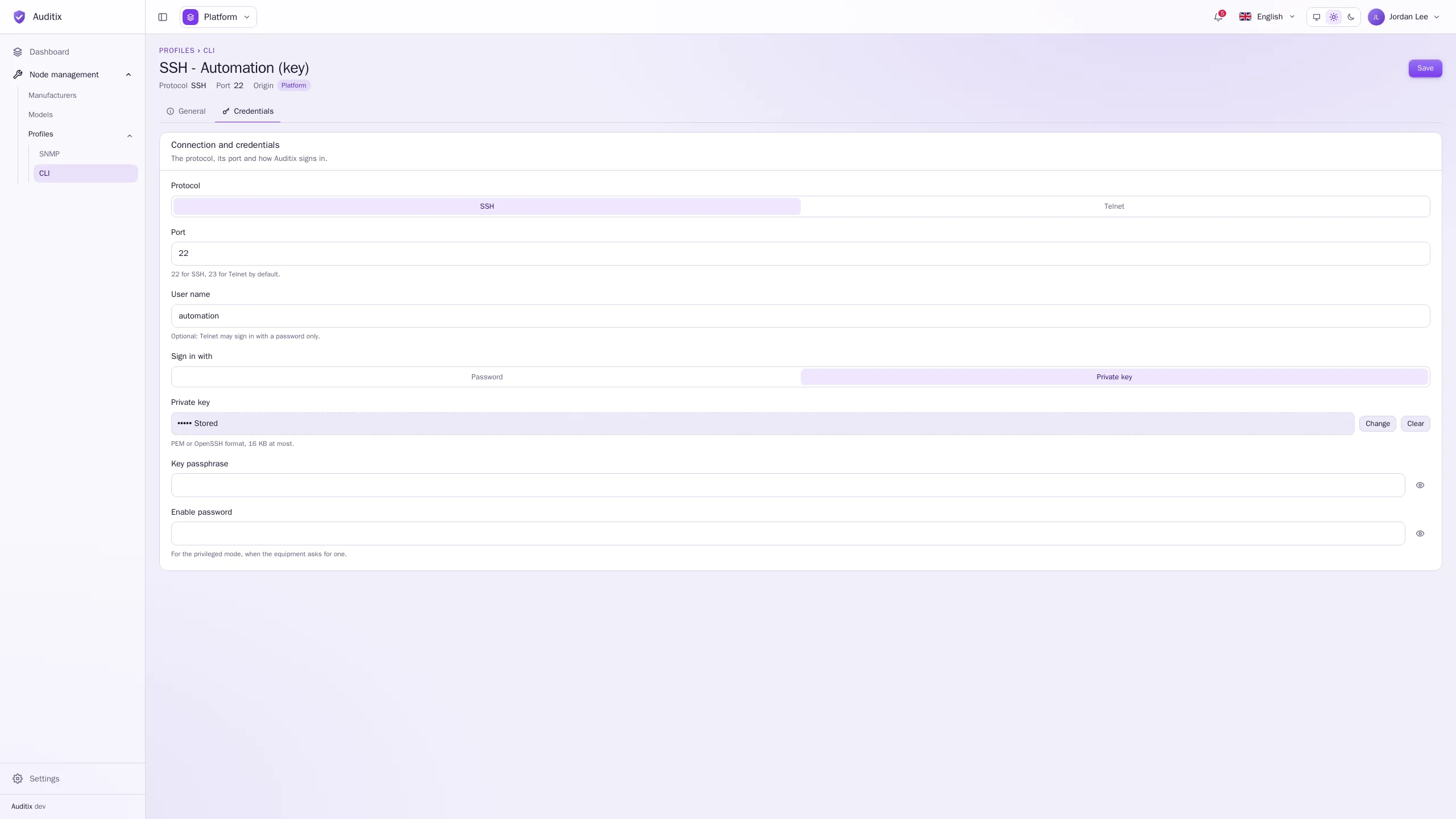
Sign in with: Private key, then paste the Private key (PEM or OpenSSH format, 16 KB at most) and, if it is protected, its Key passphrase.
-----BEGIN OPENSSH PRIVATE KEY-----b3BlbnNzaC1rZXktdjEAAAAACmFlczI1Ni1jdHIAAAAGYmNyeXB0AAAAGAAAABD......-----END OPENSSH PRIVATE KEY-----Add the matching public key to the account on the equipment (for example automation).
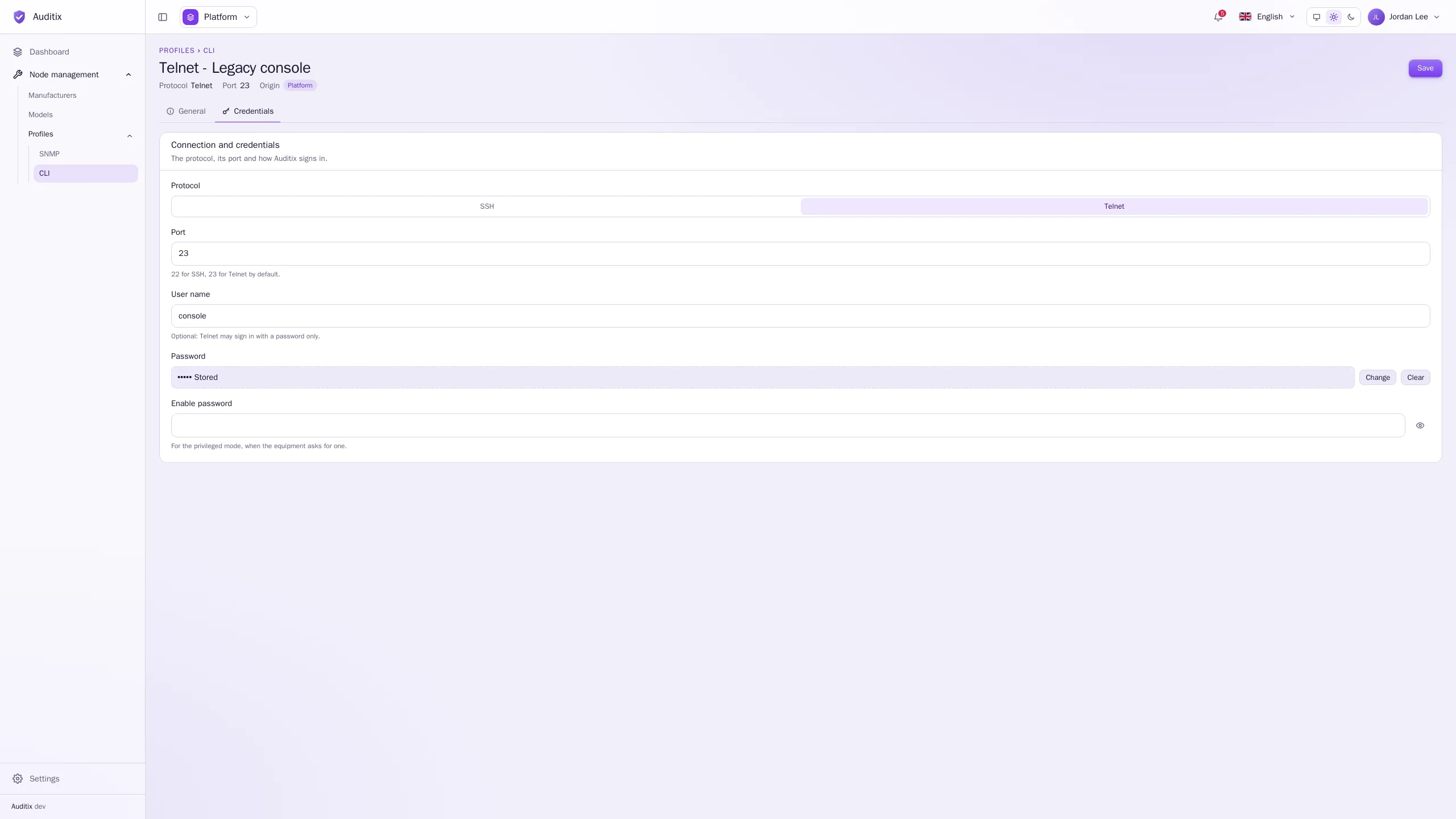
Telnet always signs in with a Password. The user name is optional.
Enable password
Section titled “Enable password”The Enable password is for the privileged mode, when the equipment asks for one (the enable
command of Cisco, Extreme and others). Leave it empty otherwise. Put the enable command itself in the
connection script of the model.
Examples
Section titled “Examples”| Name | Protocol | Port | User name | Sign in with | Enable password |
|---|---|---|---|---|---|
SSH - Network operators |
SSH | 22 | netops |
Password | s3cr3t-example |
SSH - Automation (key) |
SSH | 22 | automation |
Private key | — |
Telnet - Legacy console |
Telnet | 23 | console |
Password | — |
Secrets are write-only
Section titled “Secrets are write-only”The password, the private key, its passphrase and the enable password are encrypted when saved and never shown again: a stored secret shows as ••••• Stored, with Change and Clear.
Edit or delete a CLI profile
Section titled “Edit or delete a CLI profile”Click a row to open its page. The bin of a row deletes it; a CLI profile still used by profiles cannot be deleted. For a CLI profile shared by the platform or installed by a package, a tenant sets its own user name, password or private key: see Shared items & overrides. A package never brings a private key: it is always set this way.