Signing in
Sign in
Section titled “Sign in”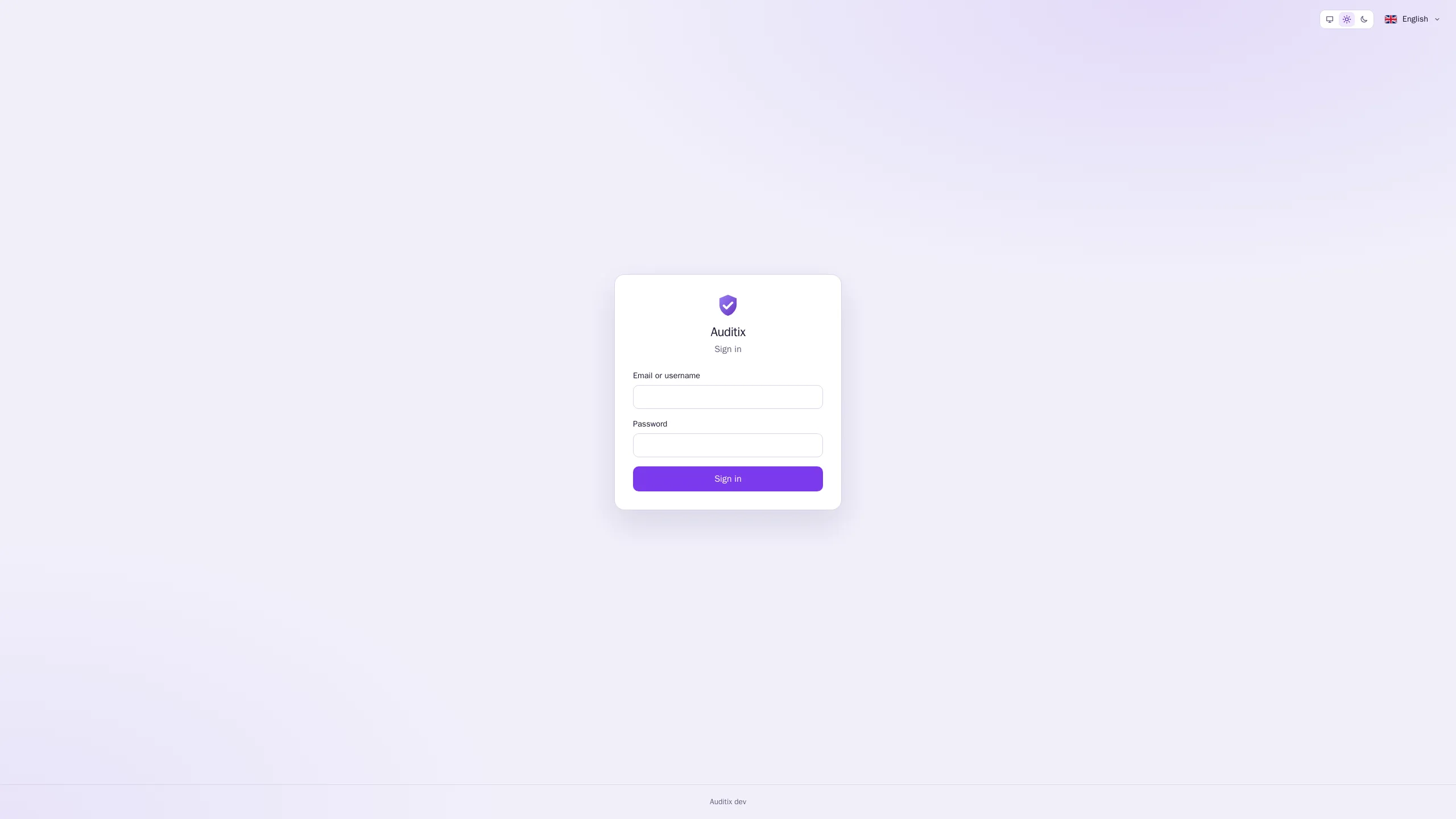
-
Open the address of your Auditix installation in a browser (for example
https://auditix.example.com). The name shown above the form is the Instance name chosen by your administrators. -
Type your Email or username and your Password.
-
Click Sign in.
The language and theme buttons at the top right of the sign-in page apply right away, before you sign in. Once signed in, the language and theme saved in your account preferences take over.
Choose your password at first sign-in
Section titled “Choose your password at first sign-in”An account created with an initial password (a new installation’s admin account, or an account
created by an administrator) must choose its own password before anything else. Auditix opens the
Choose your password page:
-
Type the New password, then again in Confirm the new password. The rules of the password policy are listed under the field (by default: at least 8 characters, with a letter, a digit and a special character).
-
Click Save and continue.
Where you land
Section titled “Where you land”After signing in you land in your preferred tenant, set in Settings › Account › Preferences › Preferred tenant. Without one, you land in the first of your tenants. A platform administrator without a preferred tenant lands in the platform view.
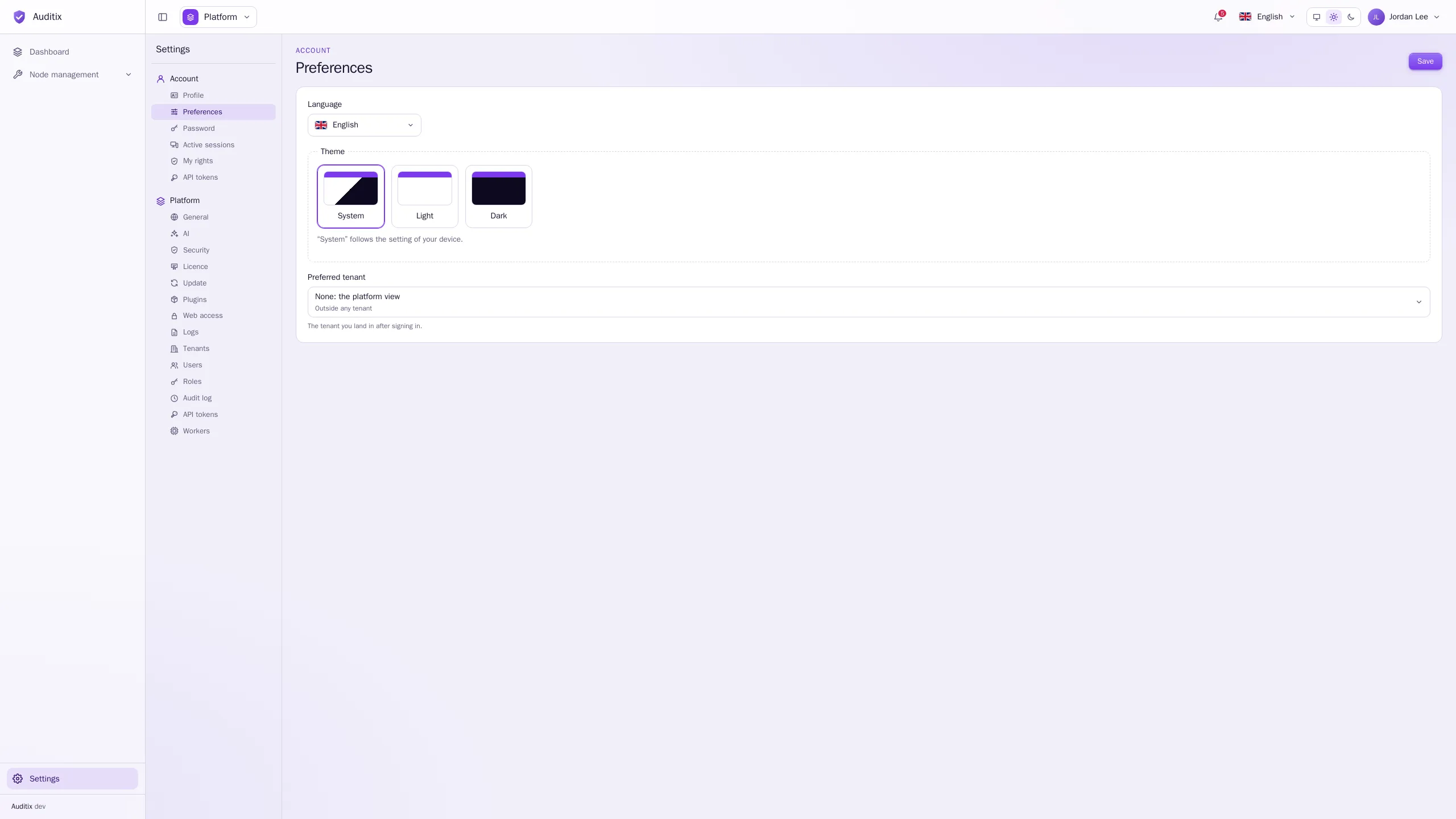
To move to another tenant afterwards, use the tenant switcher of the top bar (see The interface).
Sessions and inactivity
Section titled “Sessions and inactivity”- A session ends after 30 minutes without activity, and in any case 12 hours after signing in. Administrators can change both in Settings › Platform › Security.
- One minute before the end of an idle session, a full-screen warning Your session is about to expire counts down. Click Stay signed in to keep working. Otherwise you are sent back to the sign-in page with You were signed out after a period of inactivity.
- Settings › Account › Active sessions lists the browsers signed in to your account (browser, address, Signed in, Last active). Select sessions and sign them out if you do not recognise them.
- Changing your password signs out your other sessions. An administrator disabling your account or resetting your password signs you out everywhere.
Sign out
Section titled “Sign out”Open the account menu (your name, at the right of the top bar) and click Sign out.
Locked out?
Section titled “Locked out?”If no administrator can sign in any more, someone with access to the server can set a new password from the command line (see Production stack).