The interface
Every page of Auditix shares the same frame: a top bar, a sidebar with the menu, and the page itself.
The sidebar
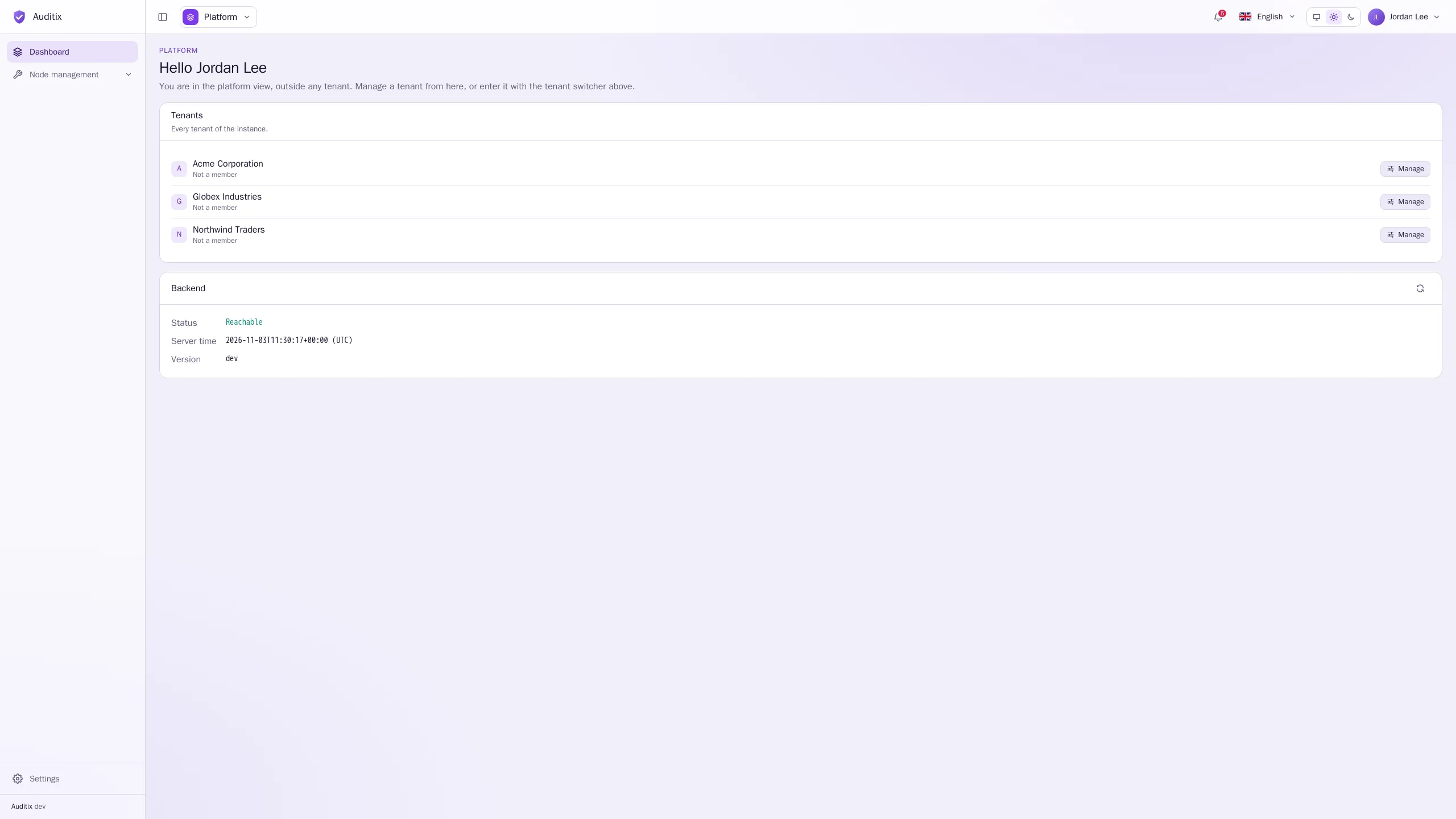
Section titled “The sidebar”The sidebar holds the menu of the application. Its entries depend on where you are and on your rights: an entry you have no permission for is not shown.
- Inside a tenant: Dashboard, then what the tenant holds (Topology, Nodes, Node management, Collections, Compliance, Configuration, Security, System updates, Reports, Database, Automation). Sections not available yet open a Coming soon page.
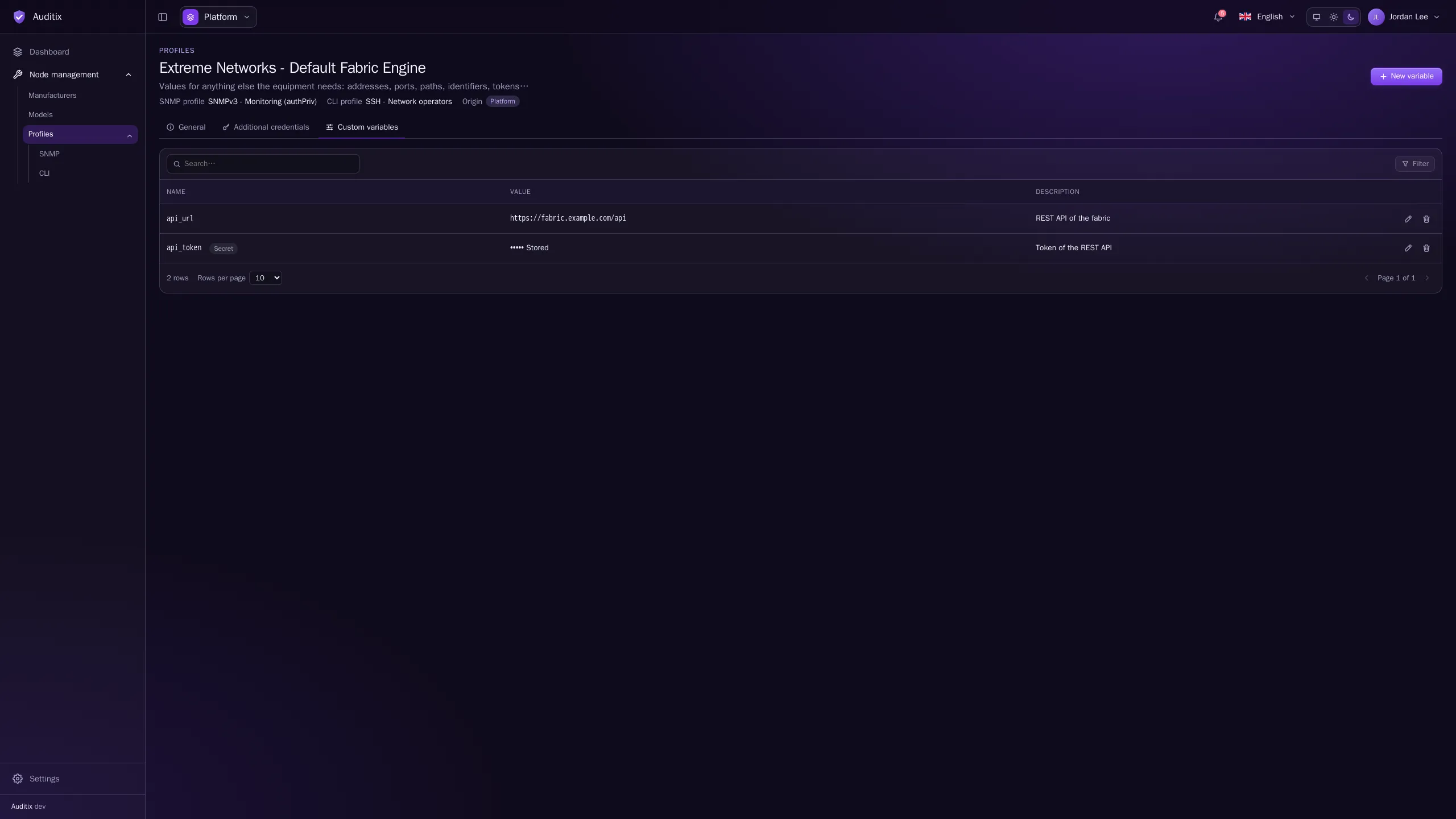
- In the platform view: Dashboard and Node management (manufacturers, models and profiles shared with every tenant).
- At the bottom: Settings, then the version of Auditix. When a newer release is out, the footer says so (Update available: …).
Categories (Node management, Profiles…) fold and unfold with their chevron, one open at a time. The button at the left of the top bar folds the whole sidebar into a narrow rail of icons, and unfolds it. On a small screen, the same button opens the menu over the page.
Tenant switcher
Section titled “Tenant switcher”The button at the left of the top bar shows the tenant you work in. Click it to search and switch:
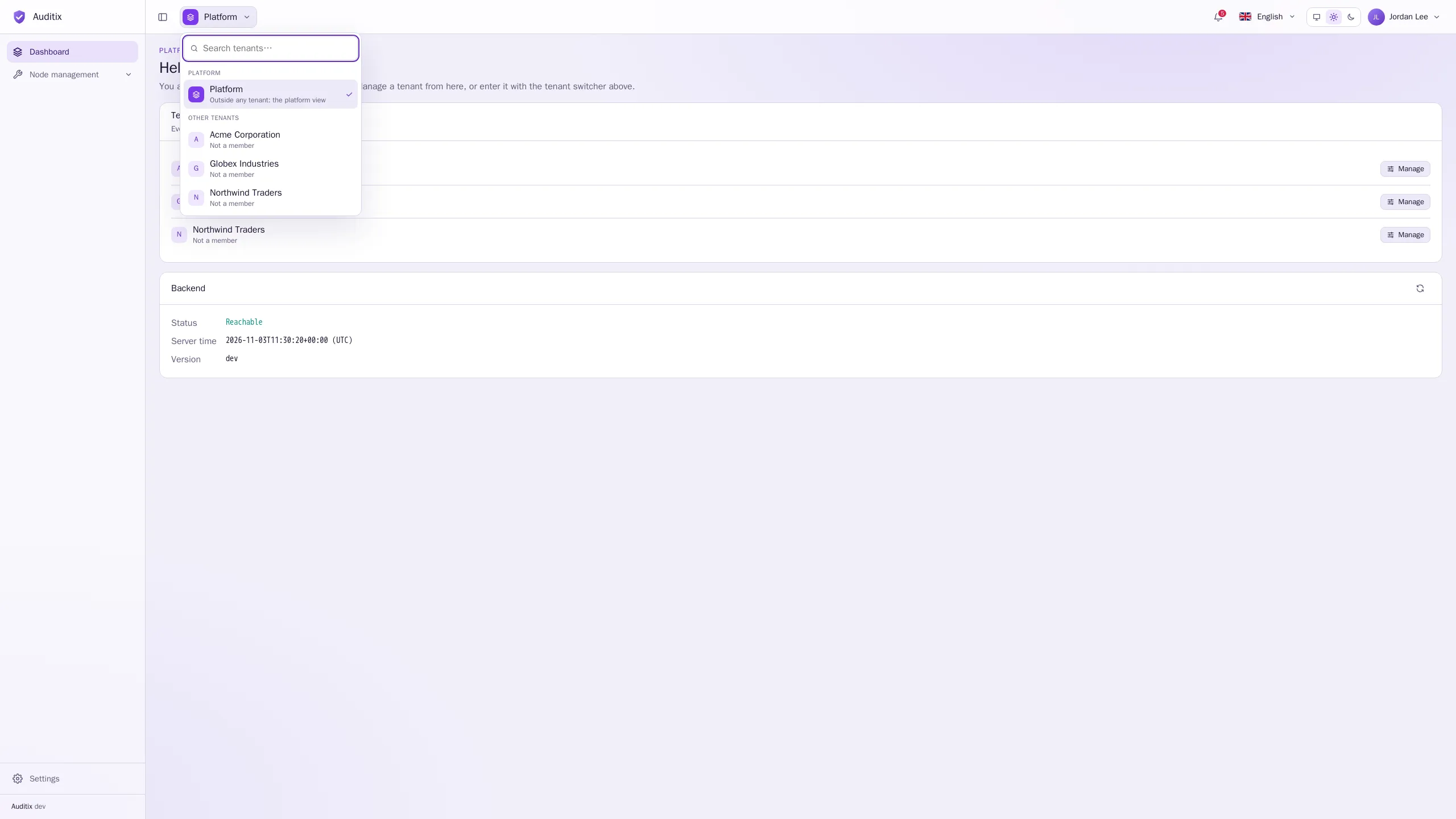
- Platform (platform administrators only): the platform view, outside any tenant.
- My tenants: the tenants you are a member of, with your roles.
- Other tenants (platform administrators only): the tenants you can enter without being a member (Not a member).
Type a few letters in Search tenants… to filter a long list. With a single-tenant licence, there is no switcher.
Language and theme
Section titled “Language and theme”- Language: the flag menu of the top bar. Auditix is available in English, French, German, Spanish, Italian, Portuguese and Japanese.
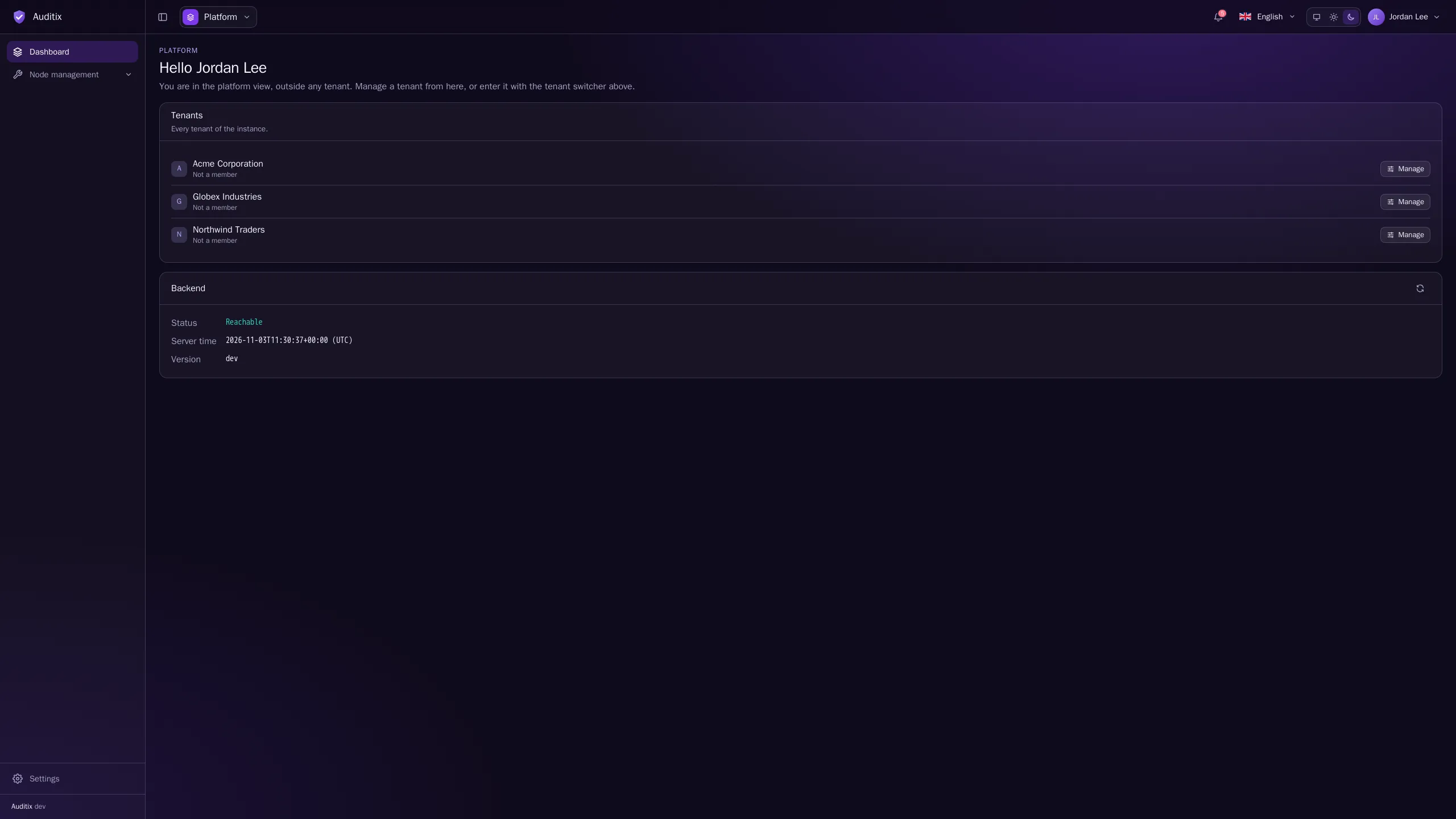
- Theme: the three buttons next to it: System (follows your device), Light or Dark.
Both are saved in your account (Settings › Account › Preferences) and follow you on every device. Until you choose, the defaults of the instance apply (set by administrators in Settings › Platform › General).
Notifications
Section titled “Notifications”The bell of the top bar counts your unread notifications. Click it to read them:
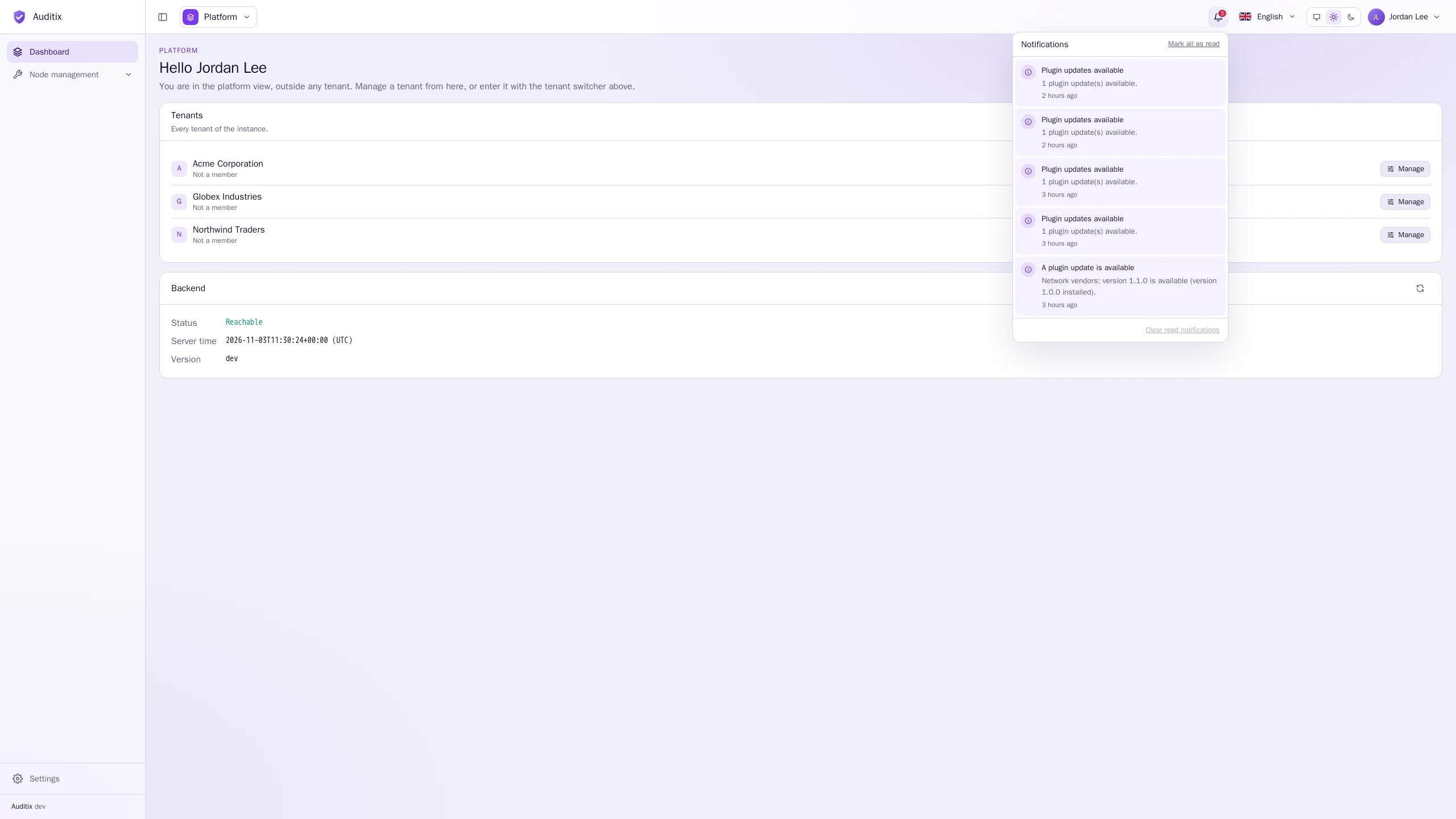
Notifications tell you about events that concern you (added to a tenant, a role changed, a plugin update available, the result of a licence or update check you started…) and show the progress of background tasks. They arrive in real time. Mark all as read and Clear read notifications keep the list short. See Notifications for the list of events.
Assistant
Section titled “Assistant”When administrators have enabled it, the assistant button (the sparkle icon in the brand colour, left of the bell) opens an AI chat in a side panel. The little robot at the bottom right of every page, Inspectix, opens it too (administrators can hide it).
- Type your question in Ask anything… and press Send.
- Talk to lets you pick the main agent or one of the specialists right under it for a new conversation.
- Conversations lists your past conversations; New conversation starts another. Conversations are private to you and kept per tenant.
Answers come from an AI model and can be wrong: check what matters. Using the assistant needs the AI assistant › Use permission (see Roles & permissions).
Account menu
Section titled “Account menu”Your name, at the right of the top bar, opens the account menu: the theme buttons, Account settings and Sign out.
Settings
Section titled “Settings”Settings, at the bottom of the sidebar, opens a second menu in three sections, shown according to your rights:
| Section | Who sees it | What it holds |
|---|---|---|
| Account | Everyone | Profile, Preferences, Password, Active sessions, My rights, API tokens |
| Tenant | Members whose roles give access, inside a tenant | General, Members, Roles, Audit log, API tokens, Plugins of the current tenant |
| Platform | Platform administrators, and accounts with platform roles | General, AI, Security, Licence, Update, Plugins, Web access, Logs, Tenants, Users, Roles, Audit log, API tokens, Workers |
Settings › Account › My rights shows everything you may do, where, and which roles give it.
Tables, forms and windows
Section titled “Tables, forms and windows”The pages follow the same habits everywhere:
- Tables have a Search… field, a Filter panel (check values, match all criteria or any), a checkbox per row for bulk actions, and the number of rows per page at the bottom. Clicking a row opens the item.
- Save sits at the top right of a page or form. Leaving a form with unsaved changes asks for a confirmation (Keep editing or Leave without saving).
- Adding, editing and deleting happen in windows. Deleting a single item asks you to type its name.
- Confirmations appear briefly at the bottom right of the screen.
- Lists refresh by themselves when someone else changes something.