Settings
The settings of the whole installation live in Settings › Platform. Each page needs its own permission (see Roles & permissions); a page you may view but not edit is shown read-only.
General
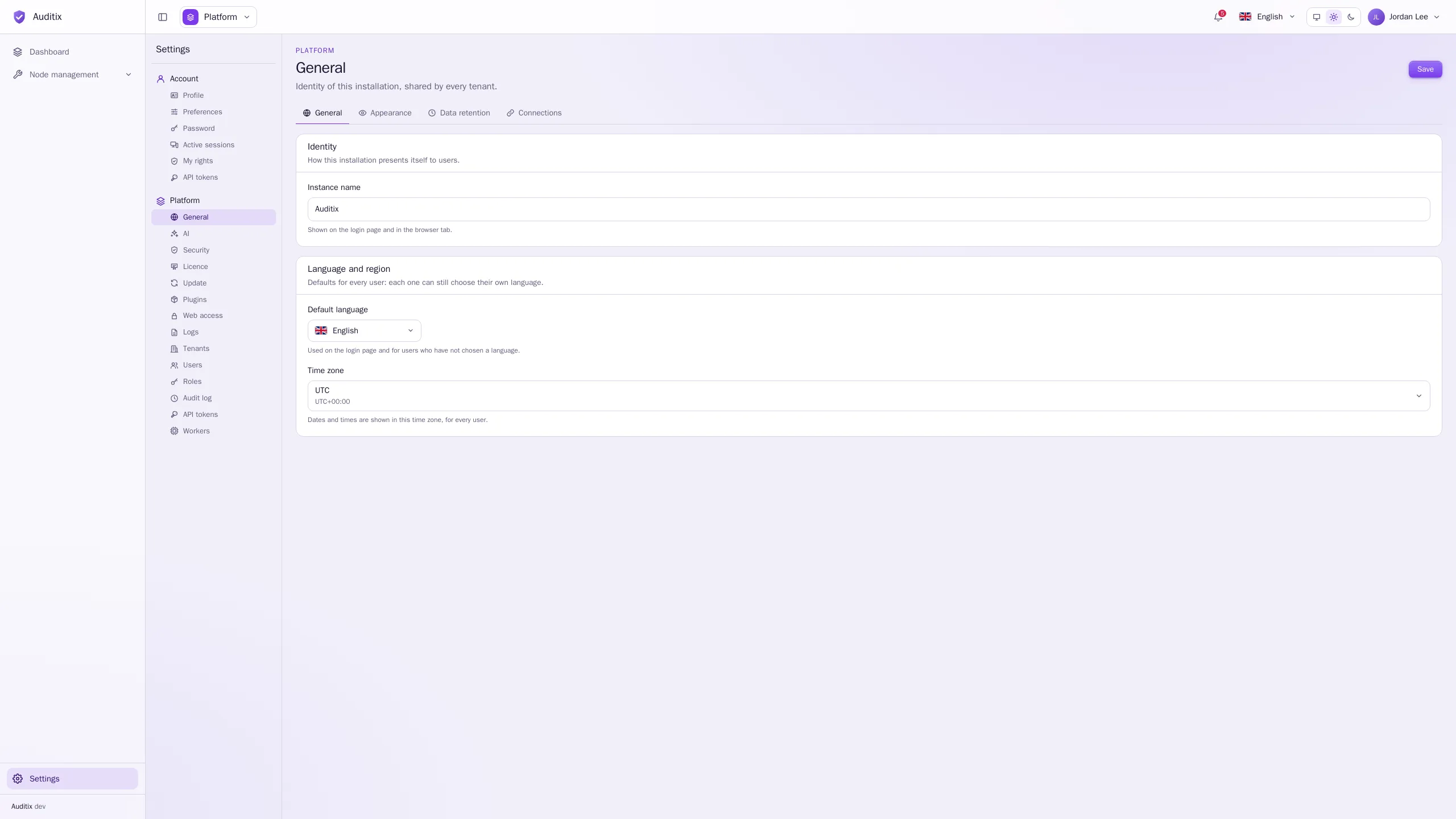
Section titled “General”Settings › Platform › General has four tabs. Click Save after a change.
General
Section titled “General”- Instance name: shown on the sign-in page and in the browser tab.
- Default language: used on the sign-in page and for users who have not chosen a language.
- Time zone: every date and time is shown in this time zone, for every user.
Appearance
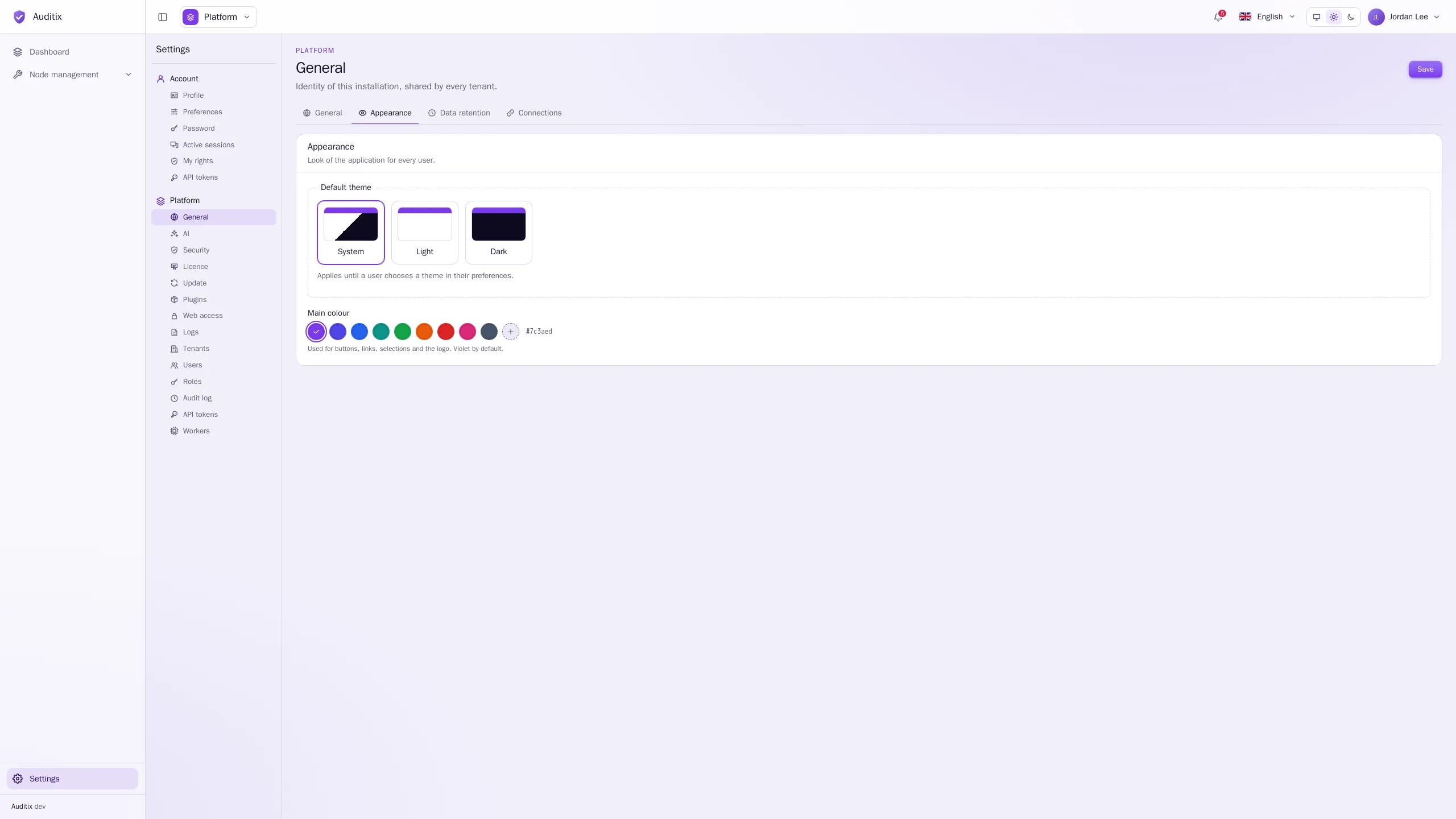
Section titled “Appearance”- Default theme: System, Light or Dark, until a user chooses their own.
- Main colour: used for buttons, links, selections and the logo. Pick one of the presets (Violet by default, Indigo, Blue, Teal, Green, Orange, Red, Pink, Slate) or a Custom colour.
Data retention
Section titled “Data retention”Audit log › Retention (days): events older than this are deleted automatically (30 days by default).
Connections
Section titled “Connections”Auditix reaches nothing on the Internet until you allow it here:
- Updates › Check for updates: reads the published releases to tell administrators when a new one is out (see Updates). Nothing about the instance is sent.
- Marketplace › Check the licence on the marketplace: lets a connected instance get its licence, report its usage every day and browse the catalogue of packages. Turned off, nothing is sent to the marketplace: the licence in place stays valid until it ends, and a licence file imported by hand keeps working. Marketplace address changes the marketplace used (only while disconnected).
- Other connections sums up the connections set on their own pages: the AI provider, Let’s Encrypt certificates and the syslog export.
Security
Section titled “Security”Settings › Platform › Security sets the rules for every account.
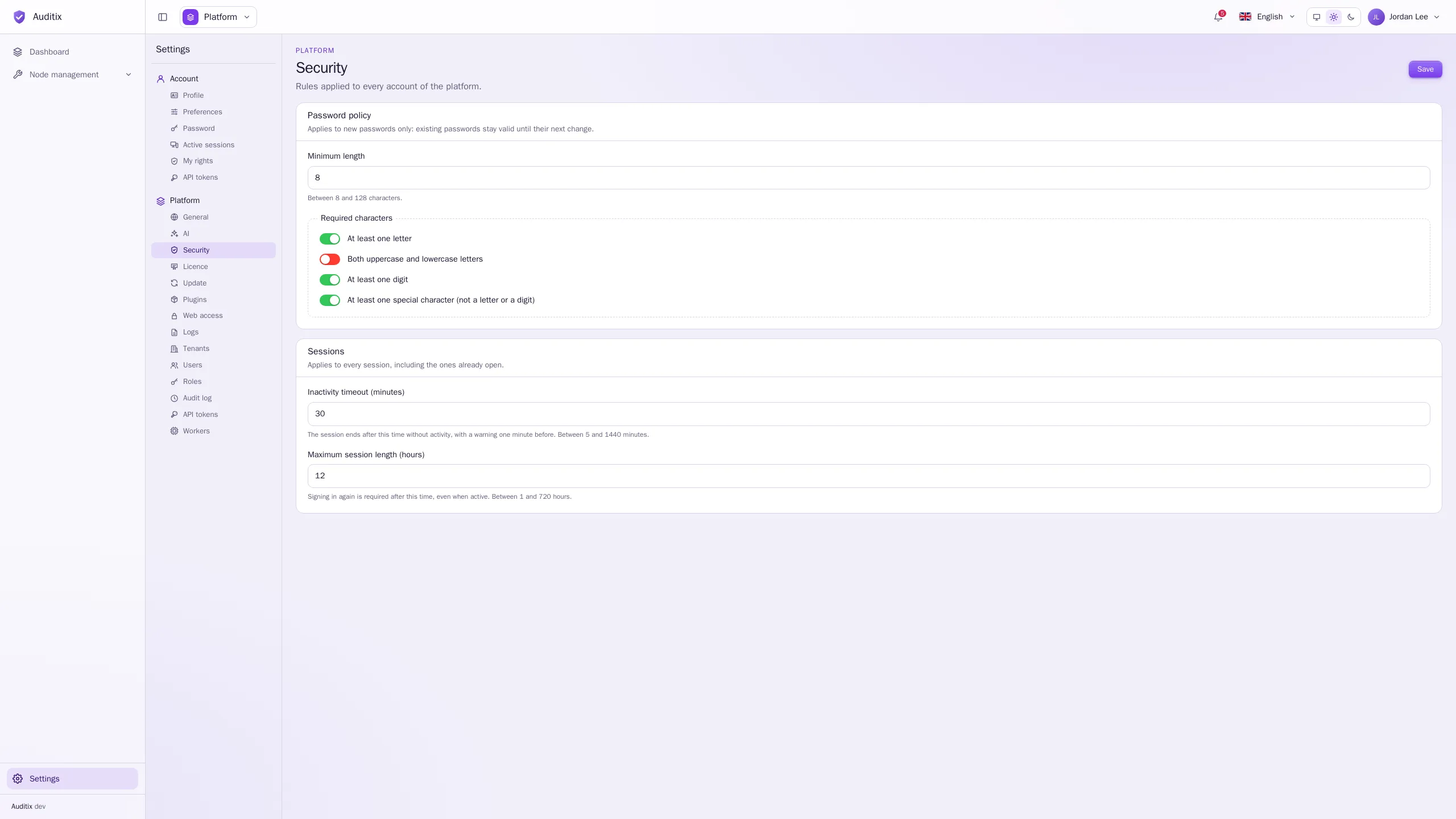
- Password policy: Minimum length (8 to 128) and Required characters: At least one letter, Both uppercase and lowercase letters, At least one digit, At least one special character. The policy applies to new passwords only: existing passwords stay valid until their next change.
- Sessions: Inactivity timeout (minutes) (5 to 1440, 30 by default; a warning appears one minute before) and Maximum session length (hours) (1 to 720, 12 by default). Changes apply to the sessions already open.
Web access
Section titled “Web access”Settings › Platform › Web access sets the Host name of the instance and HTTPS: no HTTPS, Let’s Encrypt, Let’s Encrypt (test) or your own certificate, the redirection from HTTP and HSTS. See HTTPS for the details and the recovery command.
Settings › Platform › Logs sends the logs of the instance to your syslog servers (needs the Syslog export feature of the licence).
- General: the state of the Collector, and the Host name the messages carry.
- Servers: click New destination and set its Name, Server, Protocol (UDP, TCP or TCP with TLS, with Check the certificate of the server), Port, Format (RFC 5424 or RFC 3164 (BSD)), Facility, Minimum level and Sources: Containers (the output of every service) and/or Audit log (who did what, as JSON). Send a test message checks a destination.
- Live: the logs as they arrive, with filters by level, source and service. Nothing is stored: the page keeps the last 2000 lines.
Example: a central rsyslog server reached over TCP, receiving the audit trail only.
| Field | Value |
|---|---|
| Name | Central rsyslog |
| Server | syslog.example.com |
| Protocol | TCP |
| Port | 514 |
| Format | RFC 5424 |
| Minimum level | Information |
| Sources | Audit log |
Settings › Platform › AI sets up the assistant:
- General: Enable the assistant, then the Provider: any OpenAI-compatible API (OpenRouter,
OpenAI, Mistral, Azure OpenAI, Ollama, vLLM…). Give the API address (for example
https://openrouter.ai/api/v1, orhttp://ollama:11434/v1for a local server) and the API key (stored encrypted, never shown again), click Load the models and choose the Model. - Agents: the main agent, Inspectix, and specialists placed under it, each with its own Instructions, Model and Knowledge bases, available in every tenant or in chosen ones.
- Knowledge bases: documentation the agents search to answer (text, Markdown or PDF, up to 10 MB each, or pasted text), organised in folders. Test the search shows which passages an agent would receive for a question.
- Appearance: Show the mascot, the little robot at the bottom right of every page.
API tokens
Section titled “API tokens”API tokens let scripts and integrations call the Auditix API (https://<host>/api/v1), sent as
Authorization: Bearer <token>. There are three kinds:
- Settings › Account › API tokens: tokens acting as your account (they can do what you can, no
more); the tenant is named by the
X-Auditix-Tenantheader; - Settings › Tenant › API tokens: tokens of the tenant, with the tenant roles you give them;
- Settings › Platform › API tokens: platform tokens with platform roles, and the list of every token of the instance.
Click New token, give it a Name (what it is for), its Roles, optionally Read-only (keeps
only the View permissions) and an Expiration (30 days, 90 days, 1 year or Never). The token is shown
once: copy it then. The API reference, with examples, is at https://<host>/developer.
Workers
Section titled “Workers”Settings › Platform › Workers shows the background work: the worker containers and what each process is doing (Workers), how they are shared out (Pools: queues, processes per container, Fixed or Automatic scaling), the Queues and their load, the messages that Failed every attempt (retry or delete them), the scheduled Tasks (on or off, interval, Run now) and the History of the jobs.
The scheduled tasks are:
| Task | Default interval | What it does |
|---|---|---|
| Expired sessions | 5 minutes | Ends the sessions past their inactivity timeout or maximum length. |
| Audit log retention | 1 hour | Deletes the audit events older than their retention. |
| Job history | 1 hour | Deletes old jobs, and forgets the stopped workers. |
| Licence check | 1 day | Fetches the licence of a connected instance, reports its usage, warns before the end. |
| Plugin updates | 1 day | Asks the marketplace for newer versions of the installed packages. |
| Update check | 6 hours | Reads the published versions again, unless the update check is off. |